Assignments
/onestopreporting/help/assignments
section
Includes budgets that you can work on.
2026-01-16T14:27:01+01:00
# Assignments
Includes budgets that you can work on.
**Assignments** contain your budget forms for you to work on.
Assignments can be assigned to you from the or directly . An assignment can contain multiple budgets to work on.
**There are two sections in Assignments:**
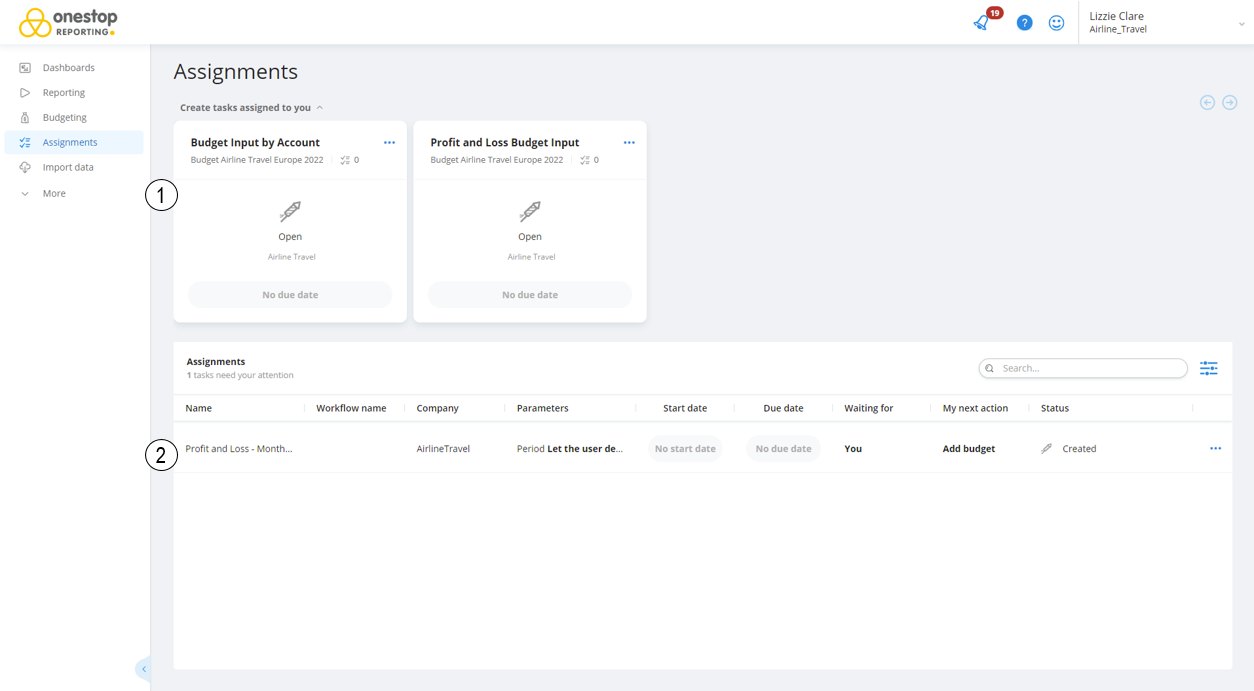
| **Section** | **Description** |
|---|---|
| **1** | **Generate assignment cards:** If the assignment allows you to select parameters for the budget, you can [generate assignments](./assignment) from the assignment cards on top. You can generate as many budget assignments as you need. **NOTE:** If the user assigning the budget to you has set all parameters for the budget, you will not see the **Generate assignment** cards. Therefore, you will only see the **Generate assignment** cards if the assignment is created with the **Let user decide** option. |
| **2** | **Assignment list:** Here you find your [assignments to work on](./budgetassignment). |
Generate assignments
/onestopreporting/help/assignments/assignment
page
2026-01-16T14:27:01+01:00
# Generate assignments
**This step is only applicable if the assignment allows you to select the budget parameters.**
> [!NOTE]
> For assignments with **Let the user decide** parameters, you can generate as many budget assignments as you need.
> [!NOTE]
> If the assignment has a start date in the future, you will see the start date on the *Create assignment* card. You must wait until the start date before you can generate an assignment.

To open the assignment and work on the budget:
1. On the *Create assignment* card you want to work on, click **Open**.
2. Select the relevant parameters. If the parameter fields are grayed out, the person who created the assignment has already defined these parameters. They cannot be changed.
3. In the top right corner, click **Create assignments**. The assignment is now added to the *Assignments* list and you can work with your assignment.

**NOTE:** Under **assignments**, you can view assignments and parameters for previously created assignments.

Work with assignments
/onestopreporting/help/assignments/budgetassignment
page
2026-01-16T14:27:01+01:00
# Work with assignments
Assignments that are assigned to you from the **Workflow** or **Budgeting** module, are displayed in the **Assignments** list.
To open and edit the budget:
1. Click **Assignments**.
2. In the **Assignments** list, click on the budget you want to open and edit.
3. (if applicable) Select the relevant parameters. If the parameter fields are gray, the person who created the assignment has already defined these parameters. They cannot be changed.
4. Click **Run** to update the spreadsheet with updated data. **NOTE:** You can use [Drilldown and voucher view](./../../archive/report/drilldown-and-voucher-view).
5. Edit the budget. See [Edit budget data](./../../budgeting/report/edit-budget-data) for more information about the available editing options.
6. Click **Save data** to save your work.
7. (if the assignment is part of a workflow) Click **Complete assignment** when you are finished.
> [!NOTE]
> Your finished assignments are saved under *Completed assignments*. To see your completed assignments, you need to filter on *Show completed assignments*.

## Use the Activity log
You can use the activity log to add or view comments about the budget. This can be useful when the workflow includes a reviewer and/or an approver.
1. Click  on the **Activity log** bar. By default, all activities (states and comments) are displayed.
- Click **Statuses** or **Comments** to filter the activities list.
- Enter text in the search field to search for comments or states. The list is automatically updated.
2. Enter text in the textbox and click **Add** to add a comment to the budget template.
## View the status of a workflow in progress
To view information about the workflow;
- On the assignment, click  **Options.**
Here you can monitor the progress of the workflow.


The **Workflow Status** pane provides the following information:
- Name of the budget.
- Name of the person who started the workflow.
- Current status of the workflow with a list of tasks assigned to the workflow participants.
- Parameters for the budget.
- At the bottom, you find your progress in the workflow.