KPIs
/onestopreporting/help/report-designer/creating-reports/expressions-and-kpis/kpis
section
2026-01-16T14:27:01+01:00
# KPIs
*KPIs* can be created and managed through the **Report Designer** menu under **KPIs**.
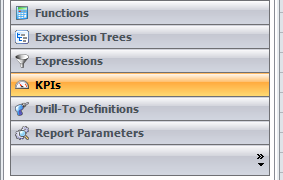
A KPI is a calculation/key figure that you can reuse across multiple reports. KPIs are used in the same way as measures (amount, quantity). Instead of dragging an amount or quantity into the report, you drag out the complete KPI.
KPIs can be based on:
- Expressions (simple or complex selection of dimensions)
- Measures (amount, quantity)
#### KPIs based on expressions
- When a KPI is based on an expression, it must include information about which measure (amount, quantity) it will have an effect on. Example: GrossProfit is Sales -- Costs. When creating this KPI, it will be significant whether you choose the actual amount or budget amount as your measure.
- A KPI has a formula. The formula is based on expressions and normal mathematical operators (+, -, /, \*) and constants.
- It is also possible to add period functions to a KPI.
#### KPIs based on measures
- For KPIs based on measures, you must select a Factset (module) that the measures you want to use are included in. For example, if you want to use the *Net amount* from General Ledger, you must select the General Ledger factset. An example of a measure-based KPI is *average price*, which is the amount divided by quantity.
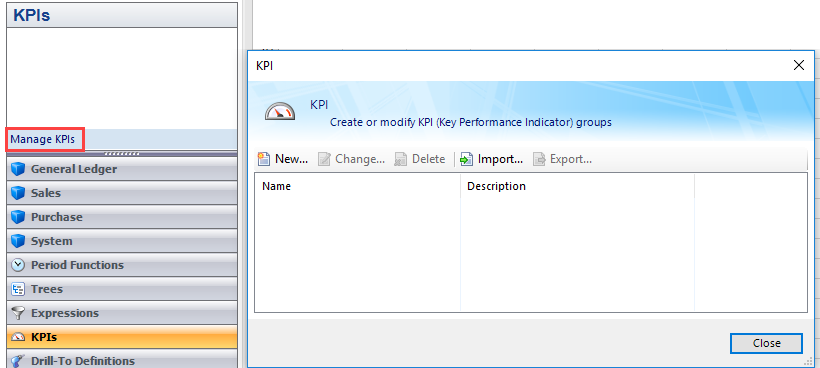
From the **KPI** dialog, you have access to the following options to manage the KPIs:
| **Button** | **Function** |
|---|---|
|  | Click to create a new KPI group. In the **KPI Groups** dialog, make sure to enter a KPI group name before starting to select values for the KPI. You may also enter a description for the KPI. |
|  | Click to open the **KPI Groups** dialog and edit the currently selected KPI group. |
|  | Click to delete the selected KPI group. |
|  | Click to create a copy of the selected KPI group. The newly created expression group may be modified with the **Change...** function. |
|  | Click to open a network browser window and import a KPI group. Valid files are other OSR expressions with the \*.xml format. |
|  | Click to open a network browser window and export a KPI group to the location. The newly exported expression group will be in the \*.xml format. |
Use KPIs in reports
/onestopreporting/help/report-designer/creating-reports/expressions-and-kpis/kpis/use-kpi-in-reports
page
2024-08-02T13:54:26+02:00
# Use KPIs in reports
You can use KPIs in the same manner as any other measure; instead of dragging an amount or quantity into the report, you drag out the complete KPI.
To use a KPI in a report;
1. In the **Report Designer** menu, click **KPI**.
2. Click the KPI you want to use, and drag it into your report.
