Expanding groups
/onestopreporting/help/report-designer/creating-reports/layout-editor/expanding-groups
section
2026-01-16T14:27:01+01:00
# Expanding groups
*Expanding groups* are an essential part of the **Report Designer**. It involves, for example, creating a list of each account rather than grouping the accounts together and displaying a total for all accounts.
## Create expanding groups
To create expanding groups;
1. In the **Layout Editor** window, select the **Expanding** checkbox to create expanding groups in the specified row or column for data items that have been set to **Group** in the **Grouping/Sorting** tab.
> [!TIP]
> The quickest way to create an expanding group is by dragging a data item, such as *Sales Person* into the report definition and selecting *Create a new selection group on the Row* or *Create a new selection group on the Column*. By default, *Report Designer* creates an expanding group and shows the group in the *Grouping/Sorting* tab in the *Layout Editor* window.
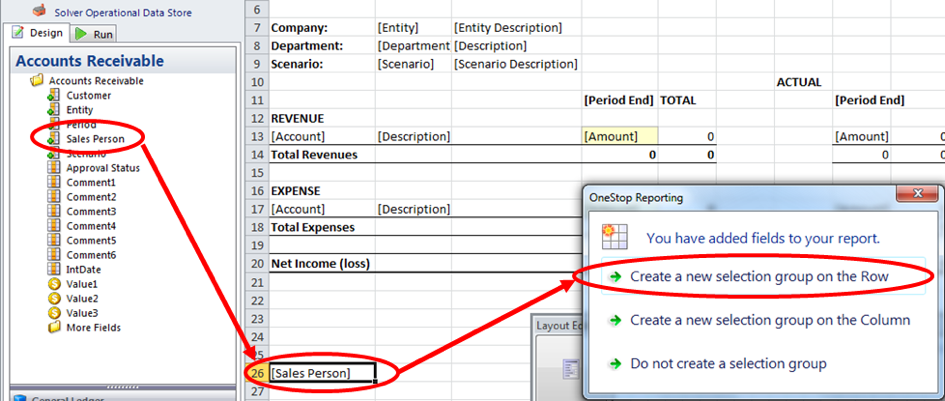
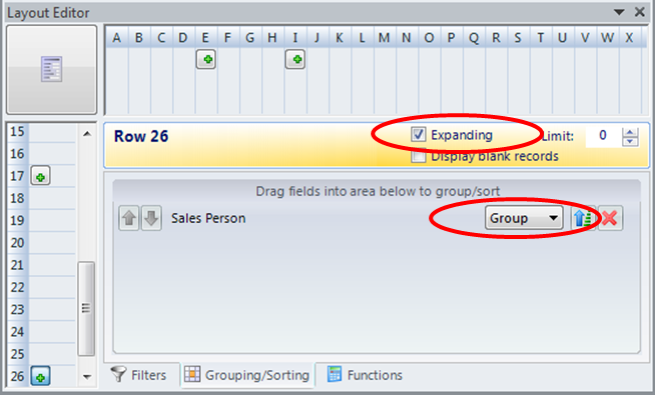*Figure: The process of creating expanding groups in the Layout Editor*
> [!TIP]
> If the row/column is an expanding group, it will be indicated by a small green plus icon  in the box of the respective row or column.
If the report is generated and an expanding group is *not* created, the report will result in consolidation of all data in the account, as shown in the figure below.
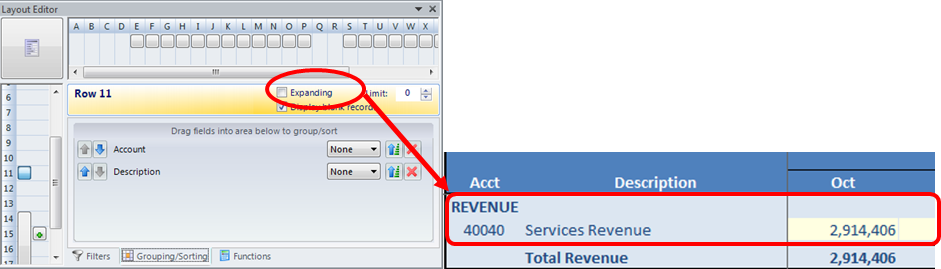*Figure: Report with no expanding group*
On the other hand, if an expanding group is created, the details of the account will be given, as shown in the figure below.
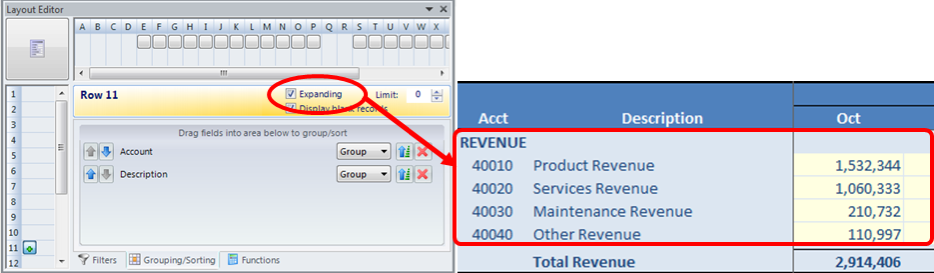*Figure: Report with an expanding group*
Expanding Groups in an Expanding Group
/onestopreporting/help/report-designer/creating-reports/layout-editor/expanding-groups/expanding-groups-in-expanding-groups
page
2024-08-07T11:22:23+03:00
# Expanding Groups in an Expanding Group
To create more flexible reporting, you can create expanding groups inside other expanding groups to create *nested* expanding groups.
An expanding group inside another expanding group can be thought of as a hierarchy. Imagine there are two data sets, one alphabetical and the other numerical (A, B, C... & 1, 2, 3...), and one is an attribute of the other.
## Create a nested expanding group
1. Drag the relevant data items into the report definition.
2. In the **OneStop Reportin**g dialog box, click **Create a new selection group on the Row**. **NOTE:** The two data items must be placed in consecutive rows.

By default, **Report Designer** creates two separate expanding groups. However, you want to create a nested expanding group.
3. In the **Layout Editor** window, drag the expanding group box so that it extends over multiple rows.

The reports for separate expanding groups (left) and a nested expanding group (right) are shown in the figure below.
