Grouping and sorting
/onestopreporting/help/report-designer/creating-reports/layout-editor/grouping-and-sorting
section
2026-01-16T14:27:01+01:00
# Grouping and sorting
Access grouping and sorting by clicking the **Grouping/Sorting** tab in the **Layout Editor** window.
> [!TIP]
> The *Grouping/Sorting* tab is not available if the report level is selected. In addition, grouping will not occur if the *Expanding* checkbox is deselected.
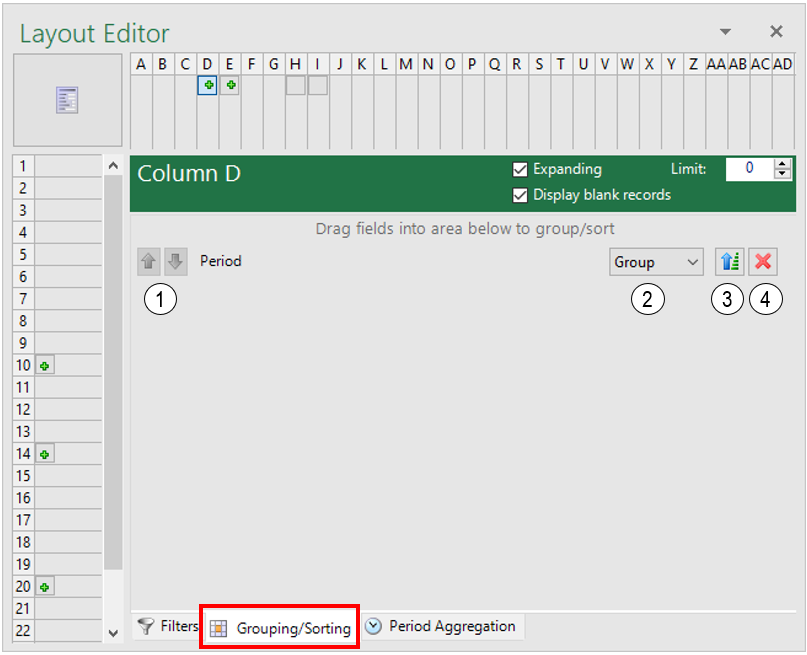*Figure: Grouping and sorting options*
| | **Icon** | **Function** |
|---|---|---|
| **1** |  | Increase or decrease the precedence of the data item in the sorting order. |
| **2** |  | Select the display option of the row, column, or cell. The available options are *None*, *Group*, *Sum*, *Min*, *Max*, and *Count*. |
| **3** |  | If this icon is displayed, the sorting is in ascending order for the group. Click on this icon to cycle through the sorting options. |
| **3** |  | If this icon is displayed, the sorting will not exist for the group. Click on this icon to cycle through the sorting options. |
| **3** |  | If this icon is displayed, the sorting is in descending order for the group. Click on this icon to cycle through the sorting options. |
| **4** |  | Delete the data item from the **Grouping/Sorting** tab. |
Grouping
/onestopreporting/help/report-designer/creating-reports/layout-editor/grouping-and-sorting/grouping
page
2024-08-02T13:54:26+02:00
# Grouping
**Report Designer** will automatically display data items on row or column level if a *dimension* or *light dimension* is dragged into a cell and a group already exists on the row or column level. An example is shown in the figure below.

In essence, grouping the *account* dimension displays results at the account level even if there are detailed sub-accounts. If the account data field is not grouped, the report will display all sub-accounts at the time of execution.
For more details on grouping, see [Expanding Groups.](./../../expanding-groups)
Sorting
/onestopreporting/help/report-designer/creating-reports/layout-editor/grouping-and-sorting/sorting
page
2024-08-02T13:54:26+02:00
# Sorting

On column and row level, dimensions can be reordered to create a hierarchy of sorting by clicking the arrow buttons next to the dimension name. For example, in the settings shown in the illustration above, the generated report will be presented in numerical order of account number (as shown in the illustration on the left below). However, if the *Description* dimension is moved to take precedence over *Account*, the generated report will be presented in alphabetical order of the account description (as shown in the illustration on the right below).

In addition, **Report Designer** will automatically display data items in the **Layout Editor** on cell level if a *measure* has been dragged into a cell and a group already exists on the row or column level. The same options are available for cell level grouping and sorting. The illustration below shows an example.
