Report parameters
/onestopreporting/help/report-designer/creating-reports/report-parameters
section
2024-08-02T13:54:26+02:00
# Report parameters
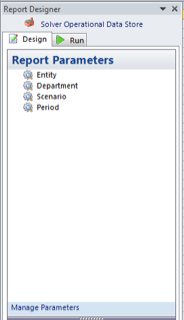
The parameters created in the report are displayed in the **Report Parameters** pane. These parameters can be dragged into the report definition so that the reader can identify which parameters were used to generate the report.
It is important to note that the **Report Parameters** pane is different from the **Report Parameters Window** which can be accessed through the **OneStop Reporting** ribbon.
Report Parameters Wizard
/onestopreporting/help/report-designer/creating-reports/report-parameters/report-parameters-wizard
section
2024-07-04T17:39:28+02:00
# Report Parameters Wizard
Report parameters allow designers to create a dynamic report so that the same report template can be used for multiple reports with minimal adjustments. For instance, a departmental budget report can be created for multiple departments by changing the *Department* parameter at the time of execution.
Report Parameters button
/onestopreporting/help/report-designer/creating-reports/report-parameters/report-parameters-wizard/manage-parameters
page
2024-08-07T11:22:23+03:00
# Report Parameters button
## Manage parameters via the Report Parameters button
Report parameters can be managed in two different ways.
The first method is to access the **Report Parameters** button in the **OneStop Reporting** Excel ribbon. The **Report Parameters** window allows you to create, modify, and delete parameters.

To create a parameter:
- Drag a data item from the **Designer** menu into the **Report Parameter** window.
To modify a parameter;
- Click the **Pencil** button .
To delete a parameter;
- Click the red x button  .
To reorder parameters;
- Use the blue arrow button , which in turn affects the display order of parameters in the **Run** tab in the **Report Designer***.* This also affects the display order of parameters when executing the report from the **Reporting** module in the **OneStop Reporting** portal.
Whether you are creating or modifying a parameter, you will access the **Report Parameter Wizard**. The wizard is composed of three pages, which are explained below.
On the first page, specify the name of the parameter and the prompt text that should be displayed when executing the report from the **Run** tab in the **Report Designer**. This text will also be displayed for the report in the **Reporting** module in the **OSR Portal**.
*Figure: Report Parameter Wizard: Name and Prompt text*
**!**The parameter name cannot be changed after the initial creation of the parameter.
The next page allows you to select the parameter prompt style. By default, **Lookup Edit** is selected, but you can modify this to fit the requirements of the report.
*Figure: Report Parameter Wizard: Prompt style*
On the last page of the **Report Parameter Wizard**, you can modify these options:
*Figure: Report Parameter Wizard: Other options*
| Option | Function |
|----|----|
| Default value | The value or values entered into the text box or those selected through the Lookup button will automatically be inserted for the parameter when the Run tab is accessed. However, the value can be changed at runtime. |
| Lookup filter | Report Designer users can manage what the data users are able to view in the Lookup window for the particular parameter. For example, this feature may be useful when reports are supposed to be run only for the last two periods. Keep in mind that this feature does not override restrictions set in the Administration settings in the OneStop Reporting portal. If a value is excluded in the Administration settings for the user, it will never be displayed in the Lookup window for the particular user. |
| Hidden | Enabling this feature will hide the parameter in the Run tab. This feature is useful when the parameter is required for testing, but in actual deployment, the parameter will always be the same value. **NOTE**: If the Hidden feature is enabled, users are required to choose a default value. |
| Allow empty (=All) | If the checkbox is selected, the report can be executed even if this parameter is left empty. If the parameter is left empty, the report will contain all values. |
| Allow multi-selection | If the checkbox is selected, multiple values can be selected in the parameter prompt (that is, multiple projects vs. one project) |
| Create sheet per value | If this checkbox is selected, Report Designer will create a new Excel sheet in the same workbook for each of the unique values chosen for the parameter (for example, selection of multiple departments will result in a sheet for each selected department). Please note that in order for this to work, you must have the value, for example department, on the Sheet filter. |
| Sheet name field | If the Create sheet per value is active, users can specify the name for the new sheets by using the Lookup option. |
Report Parameters Layout Editor
/onestopreporting/help/report-designer/creating-reports/report-parameters/report-parameters-wizard/layout-editor
page
2025-05-21T14:33:14+02:00
# Report Parameters Layout Editor
## Managing parameters via the Layout Editor
The second method for managing parameters is through the **Layout Editor.**
When filters are created on sheet, column, or row level, you can specify parameters by using the **Lookup ** button and accessing the **Parameters** tab.
You can create a parameter by assigning a parameter to the filter or clicking **Create a new Parameter** which will open the **Report Parameter Wizard**.

> [!NOTE]
> Existing parameters can be found by selecting the **Report Parameters** button in the **OneStop Reporting** Excel ribbon or by selecting the **Report Parameters** module in the **Designer** menu.