Notifications
/onestopreporting/help/user-profile
section
Messages enable you to know when certain events occur in OSR Portal.
2024-08-02T13:54:26+02:00
# Notifications
Messages enable you to know when certain events occur in OSR Portal.
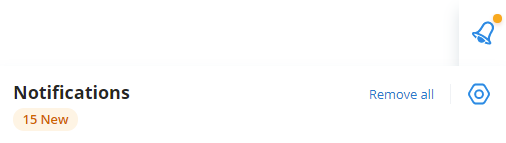
The **Notifications** functionality allows you to know when certain events occur in the **OSR Portal**. For example, when someone shares a report with you, you will see a red circle on the **Notifications** button.
Click the link below for more information.
Notifications
/onestopreporting/help/user-profile/notification-settings
page
2024-08-07T11:22:23+03:00
# Notifications
The **Notifications** functionality allows you to know when certain events occur in the **OSR Portal**. For example, when someone shares a report with you, you will see a red circle on the **Notifications** button.
- Click  **Notifications** to open the dialog box with information about your notifications.
- Click a notification to see the full message.
## Notification settings
In **Notification settings**, you can select how you would like to get your notifications; by email, in a banner in the Portal or on your mobile and devices. To access the settings;
- Click  **Notifications**, then click  **Notification settings**.
These settings have two levels;
- The options under **Notifications** control all notifications, across all modules in the Portal.
- The options under **Archive**, **Assignments**, **Import Data,** and **Publisher** control the notification settings for the specific modules.
### Enable email notification
Email notifications are by default turned off. If you want to receive emails with your notifications, you must enable the **Email notification** functionality;
1. Click **Notification**.
2. Click the  **Notifications settings** menu option.
3. Under **Notifications**, turn on the  **Send me email** switch**.**
### Disable the notification banner
The notification banner functionality is by default switched on. To disable;
1. Click  **Notification**.
2. Click the  **Notifications settings** menu option.
3. Under **Notifications**, turn off the  **Show notification banner** switch.