












Periodic consolidation
Creating a client with periodic consolidation
Periodic consolidation is only available if you register the add-on module Periodic group consolidation, and this must be done before the relevant fiscal year is started.
Once the client is created and periodic consolidation has been added to the client, click on the client to access the Home page. Select Create fiscal year and enter the fiscal year along with the desired period length, as shown in the example below:
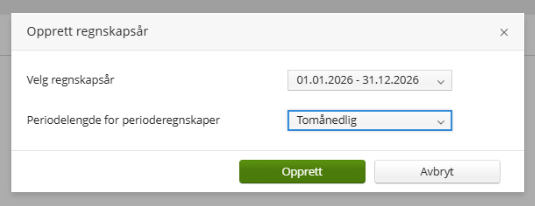
The following period lengths are available:
- Monthly
- 2-monthly
- Quarterly
- 4-monthly / tertial
- Half-yearly
- Yearly (year-end period only)
It is not possible to change the period length for a fiscal year that has already been started. The entire fiscal year must have the same period length. If the period length is set incorrectly, the fiscal year must be reset (deleted) and recreated.
Select Start period to open the relevant period.
The procedure for creating the group structure follows the same process as for clients with a standard fiscal year.
Annual accounts with notes are available in the year-end period.
Balance figures for periodic consolidation
Balance figures for the current period function in the same way as in the year-end period. Reporting with report columns for the parent company is only available in the year-end period.
Balance figures for previous periods in the fiscal year and balance figures for previous fiscal years are available for consolidated figures.
The balance figures stored for previous periods and the current period are always accumulated year-to-date figures, so that period figures in the income statement are calculated as the difference between the balance figures in the current period and the balance figures at the end of the preceding period in the fiscal year.
Under Trial Balance, you can import balance figures for previous periods in the current fiscal year and for previous fiscal years. Prior-year figures in a fiscal year will have the same periods as the periods in the current fiscal year. If periods are added between fiscal years, those periods will have zero values in the prior-year period. Please be aware of this when generating reports.
When importing, the import occurs as accumulated year-to-date figures for each group account in the group chart of accounts. Accounts in the import file that do not already exist in the group chart of accounts will be created automatically.
If the period length changes from one year to the next, comparative figures will only be shown for the periods that also existed in the preceding fiscal year. When changing from monthly to 2-monthly, all periods in the year will have comparative figures. When changing from 2-monthly to monthly reporting, comparative figures will only be available for periods 2, 4, 6, etc. from the preceding year.
When selecting import of previous periods, an import template will be displayed that can be used for import or as guidance on how an import file must be structured. Pay close attention to the column headers. The date for the last day of an accounting period in the column header, e.g. 30.09.2027, identifies the figures as year-to-date on that date, in this example as year-to-date as of 30.09.2027. This also applies to short-period accounts with deviating fiscal years.
Eliminations
Eliminations are carried forward between periods.
Manual eliminations have the following options for carry-forward:
- Not carried forward to the next period
- Carried forward to the next period without amounts
- Carried forward to the next period with amounts
Automatic eliminations have the following options for carry-forward:
- Not carried forward to the next period
- Carried forward to the next period
Eliminations for acquisitions and excess values are always carried forward to the new period. When carrying forward from one period to the next within the same fiscal year, the elimination is carried forward as-is, with the exception that depreciation is calculated in twelfths based on the acquisition date of the purchase (before or within the fiscal year) and the number of months in the accounting period. When carrying forward to a new year, accumulated values at the start of the fiscal year will be updated.
If an elimination for acquisitions and excess values expires, the elimination must be deleted in the first period in which it expires.
Elimination of income statement effects is performed in the same way as for the year-end accounts so that the balance sheet balances and the appropriation of profit agrees with the net income after tax. It is possible to hide appropriations in the income statement by going to the Report Lines menu and selecting this under settings for the accounts.
Closing and reopening periods
When a period is opened for the first time, data such as group structure, eliminations, balance figures, and prior-year balance figures will be carried forward to the new period.
If you choose to pause an opened period and go back to make changes in a previous period, data from the previous period will not be updated in a later period, and changes that you wish to carry forward to later periods must therefore be made in the period(s) that have been paused.
The same applies if you make changes in previous fiscal years.
Group overview, periodic with export to Excel
This function provides access to consolidated figures for all periods in the fiscal year as well as the two preceding fiscal years. It is possible to export the overview to Excel.
The function can be expanded to show figures at the group account level. It is also possible to select account-specific export to Excel.
Financial statement structure
The financial statement structure is available and can be edited under the Report Lines menu item. This editing also affects the annual accounts.
Editing the financial statement structure has the same functions as the financial statement structure in the annual accounts.
If it is desirable to have a different financial statement structure in the annual accounts and in the periodic accounts, it is recommended to have two separate clients available for this purpose. To distinguish clients from each other when they have the same name and the same client type, it is recommended to have a group for periodic accounts in which you place the periodic client so that the client overview shows the difference between the clients.
Reports for periodic reporting
The following reports can be generated for periodically consolidated figures (YTD is an abbreviation for “year-to-date”, and PYTD is an abbreviation for “prior year-to-date”):
- Income statement period / YTD
- Income statement YTD / PYTD
- Income statement YTD / full prior year
- Income statement YTD / YTD previous period
- Balance sheet this period / same period prior year
- Balance sheet this period / prior year-end
- Balance sheet this period / previous period
The reports have the following default properties:
- Figures are per report line
- Two periods are displayed
- A percentage column is displayed
- Percentage figures in the income statement are relative to total operating revenue
The reports have the following options:
- Account-specific report
- Three periods
- With or without percentage column
- Percentage figures in the income statement relative to total sales revenue