












Exporting data from Finale konsolidering
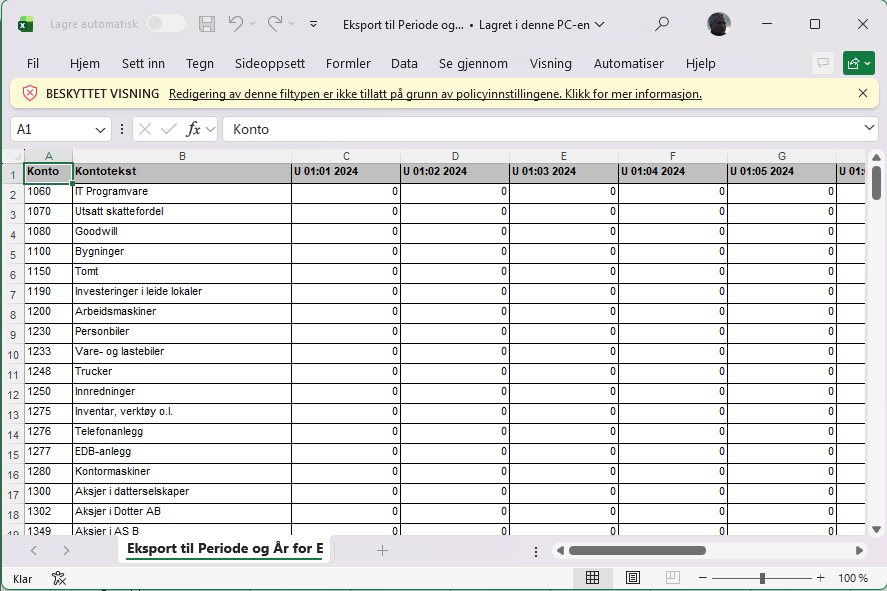
If you have previously consolidated figures in Finale Konsolidering, these can be exported and imported into Period & Year group consolidation. The export creates an Excel file with accumulated year-to-date figures for each group account, broken down by months in the fiscal year.
The import file has the following structure:
Rows:
- Row 1 with period information
- Then one row for each account in the group chart of accounts that has a balance in one of the columns
Columns:
- Column 1 with account number
- Column 2 with account name
- Then one column for each month in the fiscal year
Exporting from Finale Konsolidering
Open the desired client in Finale Konsolidering and follow the steps below.
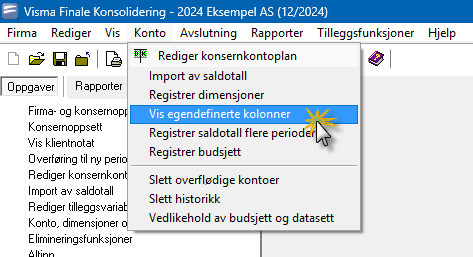
Step 1: Select custom columns
Select the menu Account - View custom columns.
Step 2: Select column layout
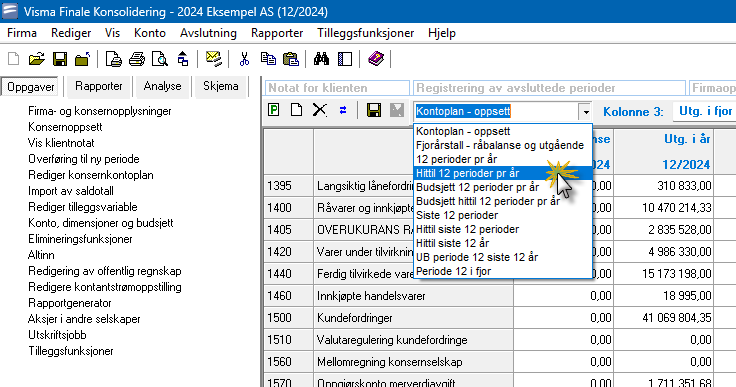
Select the column layout YTD 12 periods per year in the column layout dropdown. The figures will then show consolidated balances for each month in the fiscal year.
Step 3: Verify fiscal year
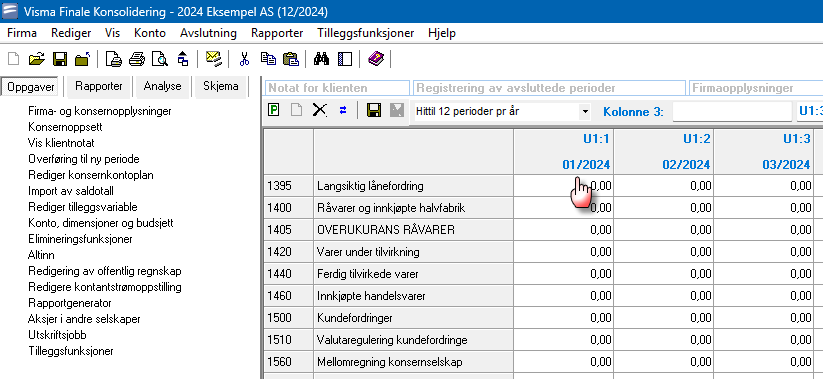
Verify that the correct fiscal year is displayed in the column headers.
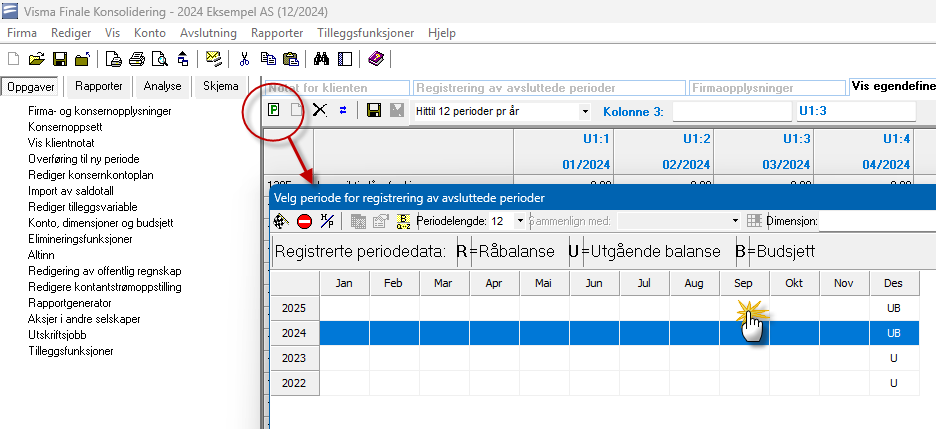
If the column header shows the wrong fiscal year, click on the period selector to change it:
Step 4: Export the file
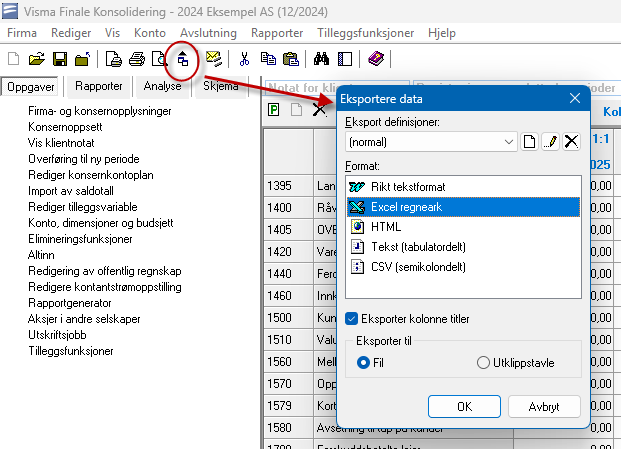
Click the export toolbar button and select as shown below:
Step 5: Save in new Excel format
The file is saved in the legacy Excel format (.XLS). Open the file in Excel and save it in the new format (.XLSX).
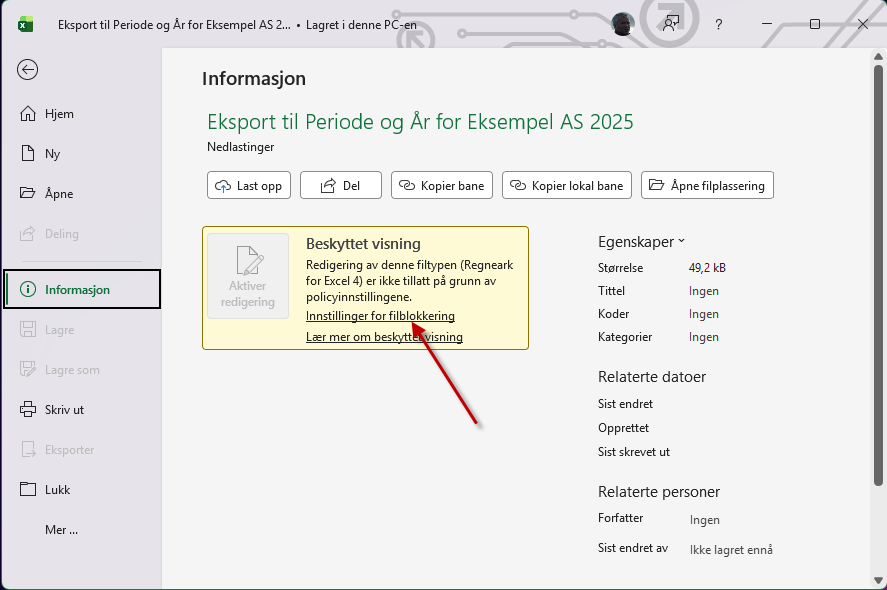
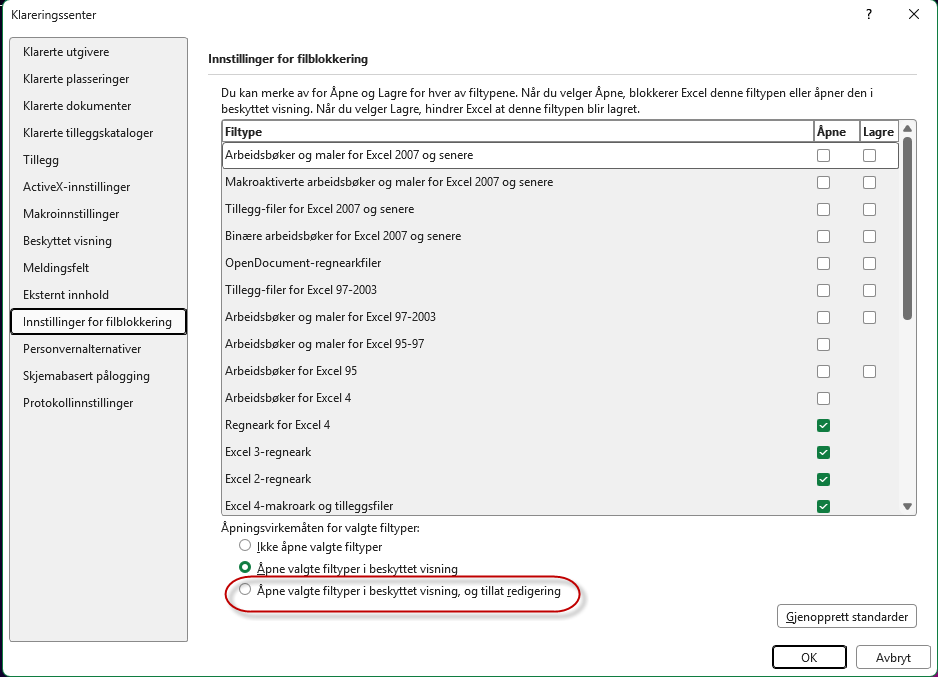
If the file opens in “Protected View”, click the warning and then click File Block Settings. Change the settings for legacy file types to allow editing.
Importing into Period & Year
Import of trial balance figures is done under Trial Balance where you select the correct fiscal year.
The export file contains year-to-date data and works regardless of period length, both in Period & Year and in Finale Konsolidering. If you have quarterly period length, the file will contain figures for months 3, 6, 9, and 12.
Adapting the import file for deviating fiscal years
The column headers in the import file identify each period. For example, U 01:05 2025 means the column contains year-to-date figures from month 1 through month 5 in fiscal year 2025.
If you have a deviating fiscal year, you need to replace the column headers with the last day of each period. For a fiscal year starting 01.07.:
- U 01:01 2025 is replaced with 01.07.2024
- U 01:12 2025 is replaced with 30.06.2025
When the last day of a period is specified in the header, it is interpreted as year-to-date on that date.