











About access rights for roles
The available levels of access depend on the system entity type.
By default, each user role has the access level specified as Not set to all workspaces and windows. Initially, this means that all users can view and use all system objects.
The Not set access level indicates that all roles have access to the workspace until Revoked or Granted access rights are set to the workspace for at least one role. All roles with the Not set level are then denied access to the workspace.
Roles and access rights
Consider an example of some roles a business might set, as shown in the illustration below, with full Delete access rights shown in blue and View Only access rights shown in purple.
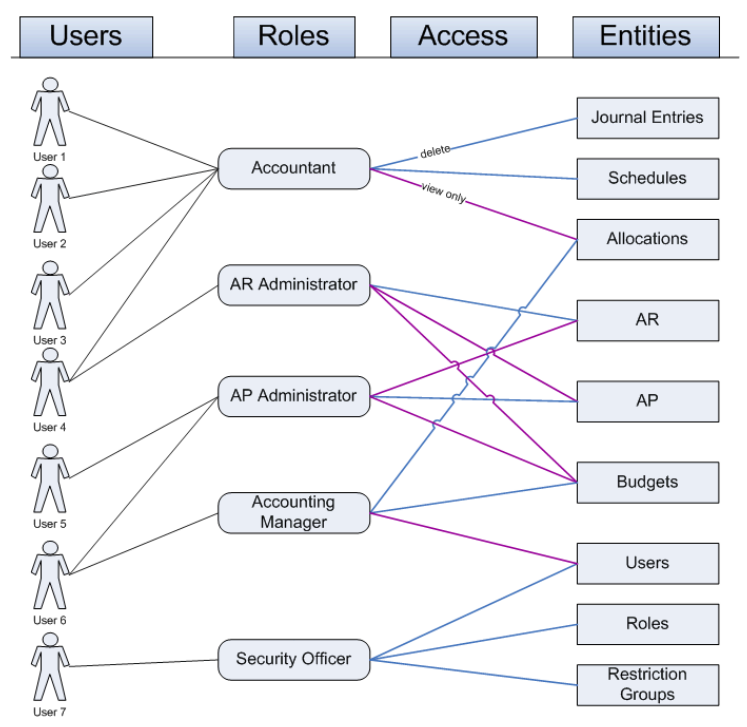
Note that some users have only one role assigned, while other users have multiple roles, in accordance with their responsibilities. A user’s access to an entity is defined by the most permissive level of access among the roles assigned to this user.
With the roles shown here, User 6 (with both the Accounting manager and Supplier ledger administrator roles assigned) has full access to budgets from the Accounting manager role, rather than view-only access from the Supplier ledger administrator role.
For more information see About levels of access rights.
Setting up access rights in Visma Net
The following table shows two methods to set up access rights for roles in two different windows in Visma Net:
| Window used | Access rights by role (SM201025) | Access rights by window (SM201020) |
| Type of access managed | Access rights for a particular role to multiple system objects. | Access rights to a particular system object (a workspace, a window, or a window element) for multiple roles. |
| Appropriate scenario | When you have created a new role and want to set up access to all necessary windows for it. | When you want to configure access rights workspace by workspace, or window by window. |
| Read more | Configure access rights for a selected user role | Configure access rights to system objects |
Access Rights Depending on Object Type
The specific levels of access rights to system objects you select for roles depend on the object type (workspace, window, or window element) for which you are specifying access rights. For some objects, you can only permit or deny access, but for others, you can set up partial access (for example, view-only access).
Ability to track access rights
You can track access rights to different objects by using the following windows:
- Access rights by window (SM65170S) Gives you the ability to build a report to view access rights by each system object (a workspace, and a window).
- Access rights by role (SM65150S) Gives you the ability to view access rights by each user role.