Payment terms
/visma-net-erp/help/customer-ledger/manage-credit-policy/payment-terms
section
2026-02-19T17:09:06+01:00
# Payment terms
About payment terms
/visma-net-erp/help/customer-ledger/manage-credit-policy/payment-terms/about-payment-terms
page
Payment terms define the specific details of the seller's payment requirements that the buyer should meet in order to purchase goods on credit.
2026-02-19T17:09:06+01:00
# About payment terms
Payment terms define the specific details of the seller's payment requirements that the buyer should meet in order to purchase goods on credit.
Payment terms define the specific details of the seller's payment requirements that
the buyer should meet in order to purchase goods on credit.
These details include the date when a payment should be made, the conditions for cash discounts when any outstanding balance is paid early, and the setting that determines whether an outstanding balance is to be paid as a single instalment or in multiple instalments.
In this topic, you will read about how to set up payment terms and assign them to
business accounts (customers and suppliers), and how to configure instalment buying
and cash discount offering.
Also, the topic explains the details of calculating the
payment periods and cash discount periods.
## Plan payment terms
You need to plan the payment terms your company offers to customers, as well as
outline the details of the payment terms offered to your company by suppliers, which
are already defined, in preparation for entering them into the system.
We recommend
that you decide on the following points when you plan each set of payment terms:
+ The length of the payment period and the ways its due date is calculated.
+ The cash discount conditions and the way they are affected by the length of the payment period.
+ The number of instalments and the instalment payment schedule (if the company offers instalment buying).
> [!NOTE]
> You can configure a cash discount for only a single-instalment payment.
If your company has been operating for some time, you already have established payment
terms.
We recommend that you compare the payment terms your company offers to
customers and the payment terms offered to your company by suppliers, because in Visma Net, you can use the same payment terms for both customer payments and payments to
suppliers, if needed.
## Set up payment terms
These are the general steps you need to perform to create a set of payment terms by using the [Payment terms (CS206500)](/visma-net-erp/help/common-settings/common-settings-windows/payment-terms-cs206500/) window:
1. You specify a descriptive ID for the payment terms you want to configure. The length of an ID can be up to 10 Unicode symbols.
> [!NOTE]
> We do not recommend using any special symbols in the IDs of entities.
1. You define the scope of the payment terms: whether they apply to only customer documents, only supplier documents, or both types of documents.
1. You configure how a due date is calculated for a document.
1. Optional: You configure the cash discount conditions.
1. Optional: If needed, you change the default instalment type of payment terms, which is **Single**, to **Multiple** and define the number of instalments and their payment schedule.
## Configure the assignment of payment terms
By using the payment terms that have been manually or automatically assigned to a
document, the system calculates the due date of the document.
If a cash discount is
applied, the system also calculates the end date of the cash discount period and the
cash discount amount for the document.
In Visma Net, you can assign payment terms to the following types of documents:
+ Customer ledger: Invoices, debit notes, and overdue charges
+ Supplier ledger: Purchase invoices and credit adjustments
To make the system automatically assign payment terms to customer documents, you
assign the payment terms to customer classes, and by default, a customer is assigned
the payment terms specified for the customer class it belongs to. You can manually
specify the payment terms for each customer (or override the class setting) by using
the [Customers (AR303000)](/visma-net-erp/help/customer-ledger/customer-ledger-windows/customers-ar303000/) window. When you
create a document and select a customer, the system automatically associates with
the document the payment terms specified for the customer.
(The payment terms for the
document can also be overridden.)
Automatic assignment of payment terms to supplier documents is configured similarly to automatic assignment of payment terms to customer documents, with terms being assigned to supplier classes. You also can manually specify or change the payment terms for each supplier by using the [Suppliers (AP303000)](/visma-net-erp/help/supplier-ledger/supplier-ledger-windows/suppliers-ap303000/) window.
## Set up due date calculation
Certain settings specified for the payment terms in the [Payment terms (CS206500)](/visma-net-erp/help/common-settings/common-settings-windows/payment-terms-cs206500/) window determine the payment period: the time interval that starts when a customer purchases a product or a service (on the document date) and ends when the customer's payment is due. In Visma Net, you do not specify the length of the payment period; you instead specify the way the document due date will be calculated based on the date of the document's creation.
By specifying the appropriate **Due date type** setting in the [Payment terms (CS206500)](/visma-net-erp/help/common-settings/common-settings-windows/payment-terms-cs206500/) window, you can calculate the due date based on one of the following factors:
+ **A day in a month** (the **Day of next Month**, **End of month**, **End of next month**, and **Day of the month** options): You can specify a day of the month (in the **Due day 1** field) to be the due date for all documents issued before this day, or the end of the current or next month can be the due date.
+ **A fixed number of days** (the **Fixed number of days** and **Fixed number of days starting next month** options): You can specify the period of time (in the **Due day 1** field) that is used to calculate the due date, based on the document date or the first day of the next month. (To determine the due date of the document, the system adds the specified number of days to either the document date or the first day of the next month.)
+ **Multiple custom dates** (the **Custom** option): With this option selected, you can set two time intervals for the document dates and specify a due date for each interval. The parameters for configuring the first interval are **Due day 1**, **Day from 1**, and **Day to 1**, and the parameters for configuring the second interval are **Due day 2**, **Day from 2**, and **Day to 2**.
The following rules are applied to each set of days:
+ The end day should be greater than the start day.
+ If the value of the **Due day N** parameter is greater than (or equal to) the value of the **Day to N** parameter, the due date will be in the current month.
+ If the value of the **Due day N** parameter is less than the value of the **Day to N** parameter, the due date will be in the next month.
> [!NOTE]
> **Attention**:
> If a document date doesn't match either interval, the due date
> won't be calculated.
> For example: If a document is dated 1/31/2018 and the intervals
> are 1–15 and 16–30, then the due date won't be calculated for the
> document.
For more examples of the ways a payment period is calculated, see: [Examples of credit and cash discount periods.](/visma-net-erp/help/customer-ledger/manage-credit-policy/payment-terms/examples-of-credit-and-cash-discount-periods/)
## Configure instalment payments
Outstanding balances can be paid in a single instalment or multiple instalments.
To
configure instalment payments, select the **Multiple** option in the
**Instalment type** list.
By default, the instalment type for new payment
terms is **Single**.
You then specify the number of instalments, the frequency
or schedule, and the instalment method.
You can configure either an instalment frequency or an instalment schedule.
To
configure a frequency, in the **Instalment frequency** field, you
can select the interval between instalments.
The following payment frequency
options are available:
Weekly
: Instalments will be one week apart.
Monthly
: Instalments will be one month apart.
Semi-monthly
: Instalments will be a half a month apart.
To determine how the amounts of instalments are calculated for the selected frequency, select one of these options in the **Instalment method** list:
Equal parts
: The document total amount (with all the applicable taxes added) is divided into equal parts.
VAT in first instalment
: The amount of the document (the total before VAT) is divided into equal parts, and the VAT amount is added to the first instalment.
To configure an instalment schedule, you leave the **Instalment frequency** field blank and select the **Split by percent in table**
instalment method.
The instalment amounts are calculated according to the
percentages that you specify for each instalment in the **Instalments schedule** table.
For each instalment, you can specify the number of
days from the due date and the percent of the total document amount.
The first
instalment (which is due on the due date) should have **0** in the **Day**
column, and other instalments' dates are specified with the respect to the due
date.
## Configure a cash discount
You can configure a cash discount for only single-instalment payment terms.
The cash
discount is available for a time interval (that is, the cash discount period) that
starts on the document date and ends in the number of days specified in the
**Cash discount settings** section. The cash discount period
falls within the payment period.
If custom due dates are set, discount settings are
applied to both intervals.
The length of the cash discount period is defined by the following parameters:
Discount type
: This parameter defines the method of calculating the end date of the discount period (which is similar to the method of calculating the due date). The option you select in the **Due date type** field determines the options available for selection in the **Discount type** field. If the **End of month** option is selected in the **Due date type** field, configuration of a cash discount is not available.
Discount day
: This parameter determines the number of days or the particular day of the month, depending on the method selected in the **Discount type** field.
For examples of the ways a cash discount period is calculated, see [Examples of credit and cash discount periods.](/visma-net-erp/help/customer-ledger/manage-credit-policy/payment-terms/examples-of-credit-and-cash-discount-periods/)
A cash discount is an amount that is calculated by applying the percent specified in
the **Discount %** field to the total amount of the document.
When
you enter a payment for the document during the cash discount period, the system
deducts the calculated discount amount from the total amount of the document and
generates the payment for the amount or the result of the
deduction.
If a cash discount is applied to a document, it may or may not affect how the system
calculates the taxable amount of a document.
You may indicate to the system how to
calculate the taxable amount for a VAT application in the [VAT (TX205000)](/visma-net-erp/help/vat/vat-windows/vat-tx205000/) window.
For details about how the system
calculates a taxable amount of a document if a cash discount should be applied to
the document, see: [About VAT settings.](/visma-net-erp/help/vat/manage-taxes/about-vat-settings/)
Related pages
Concepts
Tasks
Windows
Examples of credit and cash discount periods
/visma-net-erp/help/customer-ledger/manage-credit-policy/payment-terms/examples-of-credit-and-cash-discount-periods
section
In this topic, you can find examples that demonstrate how the credit period and cash discount period are calculated based on the calculation method of the applicable payment terms.
2026-02-19T17:09:06+01:00
# Examples of credit and cash discount periods
In this topic, you can find examples that demonstrate how the credit period and cash discount period are calculated based on the calculation method of the applicable payment terms.
## Structure of these examples
Each section describes a particular method of calculating the length of credit period and discount period defined by the payment terms. You select the calculation method in the **Due date type** field in the [Payment terms (CS206500)](/visma-net-erp/help/common-settings/common-settings-windows/payment-terms-cs206500/) window.
In each section, the first column of the table lists the options that you can select in the
**Discount type** field, based on the method selected for due date
calculation.
The second column contains sample settings for each option that you could use to
configure the payment terms in the [Payment terms (CS206500)](/visma-net-erp/help/common-settings/common-settings-windows/payment-terms-cs206500/) window, as well as
the document date from the Visma Net
window used to create the document. The third column displays the resulting payment period and cash
discount period for the document date specified in the sample settings. This column includes a
diagram that shows the resulting credit period and cash discount period. The legend of the
diagram is as follows:
+ : Starting and ending dates of the credit period
+ : Days of the credit period
+ : Days of the cash discount period
## Due date type: Fixed number of days
With the **Fixed number of days** calculation method, the payment is due a fixed number of days after the sale or purchase. You specify the number of days in **Due day 1**.
|Discount type|Sample settings|Result|
|---|---|---|
|**Fixed number of days**|In the Payment terms window: + **Due day 1**: **30** + **Discount day**: **7** In the document creation window: + **Document date**: **1/1/2021**|Credit period: 1/1/2021–1/31/2021 Cash discount period: 1/1/2021–1/8/2021 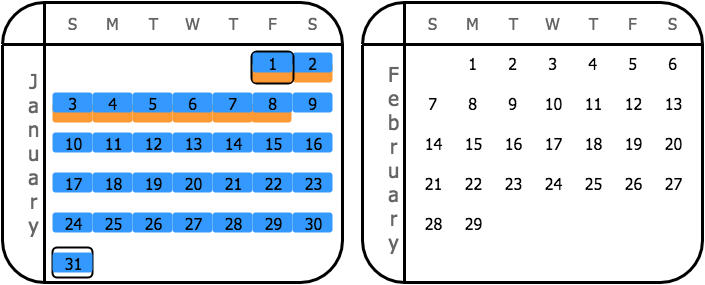|
## Due date type: Day of next month
With the **Day of next month** calculation method, the payment is due on a particular day of the next calendar month after the month of the document date.
You specify the day in
**Due day 1**.
In this example, the value of the **Due day 1** parameter is greater than the number of days in the next month (February); therefore, the system uses the last date in the next month for the calculation of the credit period.
|Discount type|Sample settings|Result|
|---|---|---|
|**Day of next month**|In the Payment terms window: + **Due day 1**: **30** + **Discount day**: **7** In the document creation window: + **Document date**: **1/1/2021**|Credit period: 1/1/2021–2/29/2021 Cash discount period: 1/1/2021–2/7/2021 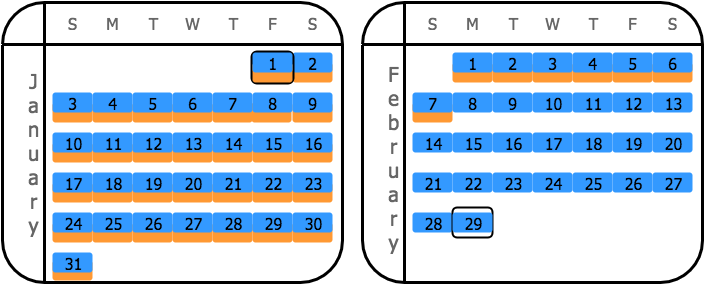|
|**End of month**|In the Payment terms window: + **Due day 1**: **30** + **Discount day**: **N/A** In the document creation window: + **Document date**: **1/1/2021**|Credit period: 1/1/2021–2/29/2021 Cash discount period: 1/1/2021–1/31/2021 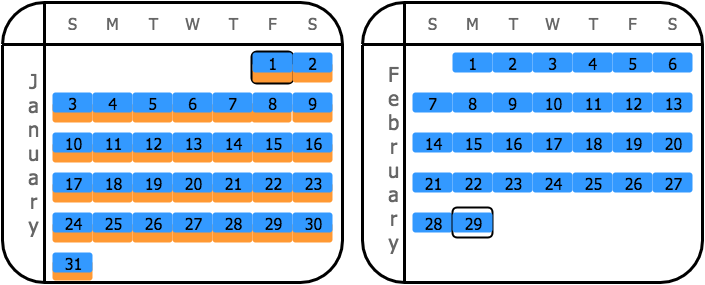|
|**Day of the month**|In the Payment terms window: + **Due day 1**: **30** + **Discount day**: **7** In the document creation window: + **Document date**: **1/1/2021**|Credit period: 1/1/2021–2/29/2021 Cash discount period: 1/1/2021–1/7/2021 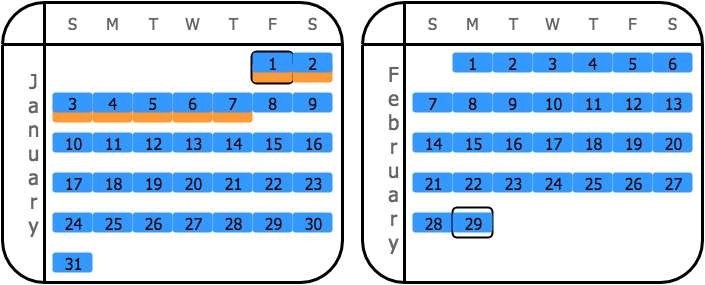|
## Due date type: End of next month
With the **End of next month** calculation method, the payment is due at the end of the next calendar month after the month of the document date.
For this calculation method, note that the credit and cash discount periods are equal if the **End of next month** option is selected in the **Discount type** field.
|Discount type|Sample settings|Results|
|---|---|---|
|**Day of next month**|In the Payment terms window: + **Due day 1**: **N/A** + **Discount day**: **7** in the document creation window: + **Document date**: **1/1/2021**|Credit period: 1/1/2021–2/29/2021 Cash discount period: 1/1/2021–2/7/2021 |
|**End of month**|In the Payment terms window: + **Due day 1**: **N/A** + **Discount day**: **N/A** In the document creation window: + **Document date**: **1/1/2021**|Credit period: 1/1/2021–2/29/2021 Cash discount period: 1/1/2021–1/31/2021 |
|**End of next month**|In the Payment terms window: + **Due day 1**: **N/A** + **Discount day**: **N/A** In the document creation window: + **Document date**: **1/1/2021**|Credit period: 1/1/2021–2/29/2021 Cash discount period: 1/1/2021–2/29/2021 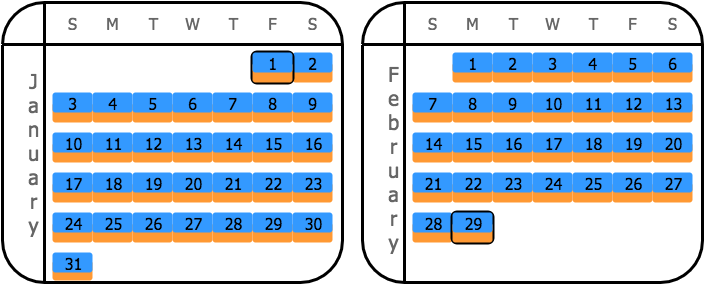|
|**Day of the month**|In the Payment terms window: + **Due day 1**: **N/A** + **Discount day**: **7** In the document creation window: + **Document date**: **1/1/2021**|Credit period: 1/1/2021–2/29/2021 Cash discount period: 1/1/2021–1/7/2021 |
## Due date type: Day of the month
With the **Day of the month** calculation method, the payment is due on a particular day of
the current calendar month, if the invoice is issued before this day.
If the invoice is issued
after this Day of the current calendar month, then the payment is due on the day of the next
calendar month.
You specify the day in **Due day 1**.
|Discount type|Sample settings|Result|
|---|---|---|
|**Day of the month**|In the Payment terms window: + **Due day 1**: **30** + **Discount day**: **7** In the document creation window: + **Document date**: **1/1/2021**|Credit period: 1/1/2021–1/30/2021 Cash discount period: 1/1/2021–1/7/2021 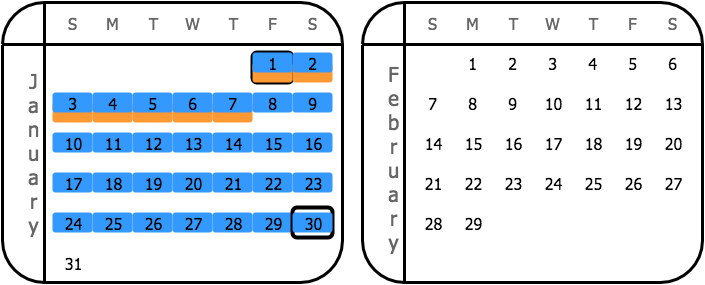|
## Due date type: Fixed number of days starting next month
With the **Fixed number of days starting next month** calculation method, the payment is due a fixed number of days starting the first day of the next calendar month after a sale or purchase. You specify the number of days in **Due day 1**.
|Discount type|Sample settings|Result|
|---|---|---|
|**Fixed number of days starting next month**|In the Payment terms window: + **Due day 1**: **30** + **Discount day**: **7** In the document creation window: + **Document date**: **1/1/2021**|Credit period: 1/1/2021–3/2/2021 Cash discount period: 1/1/2021–2/8/2021 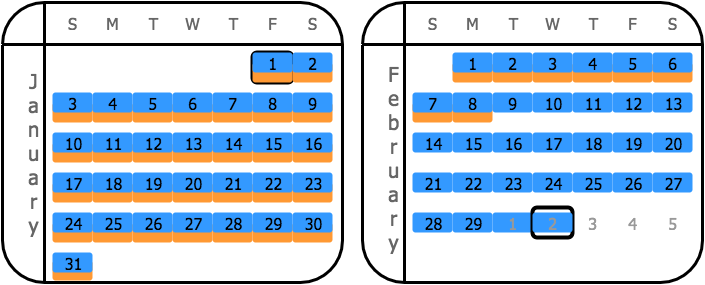|
## Due date type: Custom
With the **Custom** calculation method, you set two time intervals for the document dates
and specify a due date for each interval.
The parameters for configuring the first interval are
**Due day 1**, **Day from 1**, and **Day to 1**, and the parameters for configuring the second interval are **Due day 2**, **Day from 2**, and **Day to 2**.
The sample settings here define the following intervals: 1–15 and 16–31.
The due
date for the first interval is the 10th of the next month for documents issued between day 1 and
day 15 of the current month.
The due date for the second interval is the 25th of the next month
for documents issued between day 16 and day 31 of the current month.
For this calculation method, note that the system shortens the cash discount period to be equal to the credit period if the **End of next month** option is selected as the **Discount type**.
|Discount type|Sample settings|Results|
|---|---|---|
|**Day of next month**|In the Payment terms window: Interval 1: + **Due day 1**: **10** + **Day from 1**: **1** + **Day to 1**: **15** Interval 2: + **Due day 2**: **25** + **Day from 2**: **16** + **Day to 2**: **31** **Discount day**: **7** In the document creation window: + **Document 1 date**: **1/1/2021** + **Document 2 date**: **1/16/2021**|### Document 1 Credit period: 1/1/2021–2/10/2021 Cash discount period: 1/1/2021–2/7/2021 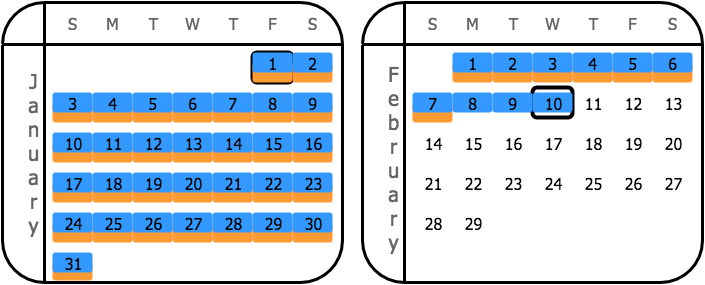 ### Document 2 Credit period: 1/16/2021–2/25/2021 Cash discount period: 1/16/2021–2/7/2021 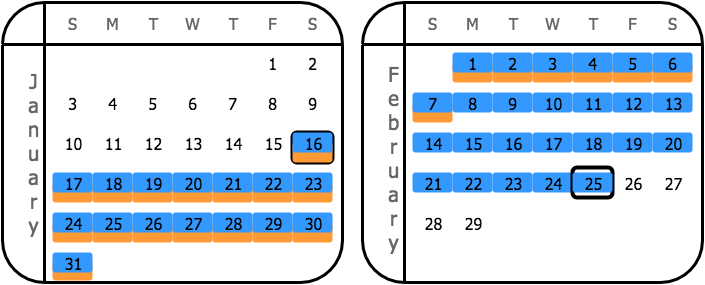|
|**Fixed number of days**|In the Payment terms window: Interval 1: + **Due day 1**: **10** + **Day from 1**: **1** + **Day to 1**: **15** Interval 2: + **Due day 2**: **25** + **Day from 2**: **16** + **Day to 2**: **31** **Discount day**: **7** In the document creation window: + **Document 1 date**: **1/1/2021** + **Document 2 date**: **1/16/2021**|### Document 1 Credit period: 1/1/2021–2/10/2021 Cash discount period: 1/1/2021–1/8/2021 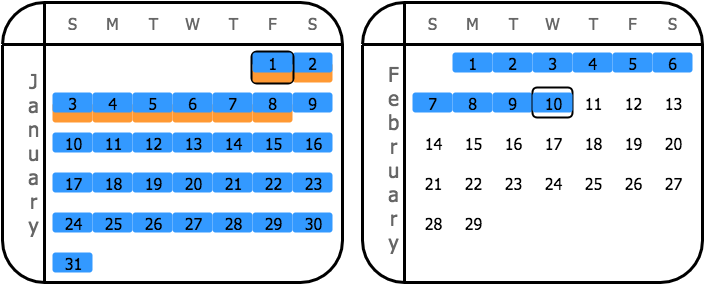 ### Document 2 Credit period: 1/16/2021–2/25/2021 Cash discount period: 1/16/2021–1/23/2021 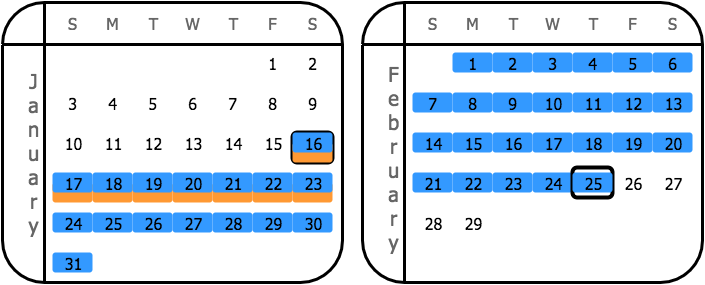|
|**End of month**|In the Payment terms window: Interval 1: + **Due day 1**: **10** + **Day from 1**: **1** + **Day to 1**: **15** Interval 2: + **Due day 2**: **25** + **Day from 2**: **16** + **Day to 2**: **31** **Discount day**: **N/A** In the document creation window: + **Document 1 date**: **1/1/2021** + **Document 2 date**: **1/16/2021**|### Document 1 Credit period: 1/1/2021–2/10/2021 Cash discount period: 1/1/2021–1/31/2021 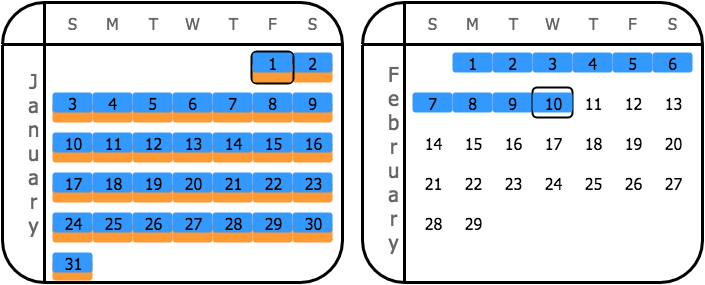 ### Document 2 Credit period: 1/16/2021–2/25/2021 Cash discount period: 1/16/2021–1/31/2021 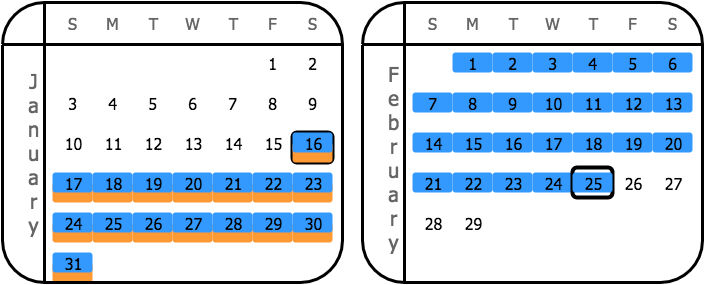|
|**End of next month**|In the Payment terms window: Interval 1: + **Due day 1**: **10** + **Day from 1**: **1** + **Day to 1**: **15** Interval 2: + **Due day 2**: **25** + **Day from 2**: **16** + **Day to 2**: **31** **Discount day**: **N/A** In the document creation window: + **Document 1 date**: **1/1/2021** + **Document 2 date**: **1/16/2021**|### Document 1 Credit period: 1/1/2021–2/10/2021 Cash discount period: 1/1/2021–2/10/2021 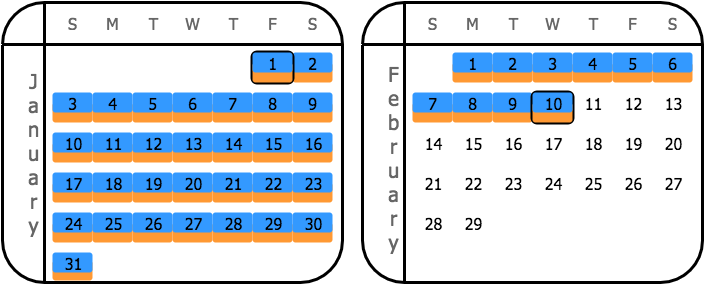 ### Document 2 Credit period: 1/16/2021–2/25/2021 Cash discount period: 1/16/2021–2/25/2021 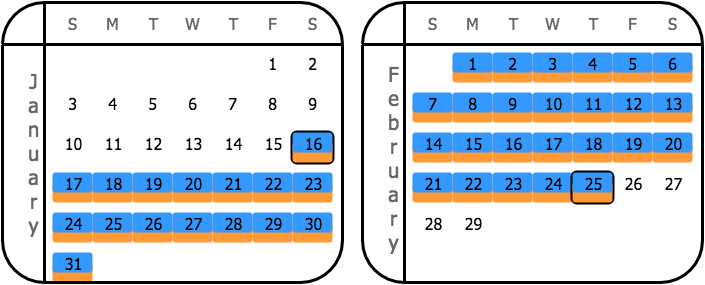|
|**Day of the month**|In the Payment terms window: Interval 1: + **Due day 1**: **10** + **Day from 1**: **1** + **Day to 1**: **15** Interval 2: + **Due day 2**: **25** + **Day from 2**: **16** + **Day to 2**: **31** **Discount day**: **7** In the document creation window: + **Document 1 date**: **1/1/2021** + **Document 2 date**: **1/16/2021**|### Document 1 Credit period: 1/1/2021–2/10/2021 Cash discount period: 1/1/2021–1/7/2021 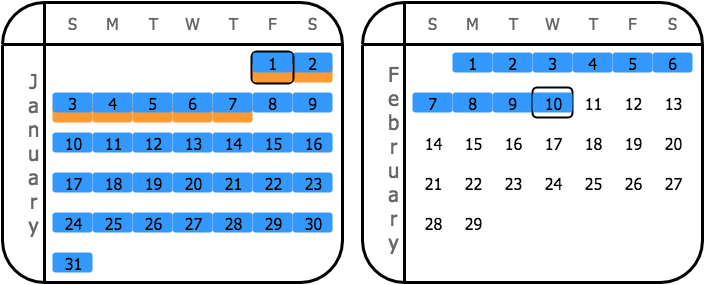 ### Document 2 Credit period: 1/16/2021–2/25/2021 Cash discount period: 1/16/2021–2/7/2021 |
|**Fixed number of days starting next month**|In the Payment terms window: Interval 1: + **Due day 1**: **10** + **Day from 1**: **1** + **Day to 1**: **15** Interval 2: + **Due day 2**: **25** + **Day from 2**: **16** + **Day to 2**: **31** **Discount day**: **7** In the document creation window: + **Document 1 date**: **1/1/2021** + **Document 2 date**: **1/16/2021**|### Document 1 Credit period: 1/1/2021–2/10/2021 Cash discount period: 1/1/2021–2/8/2021 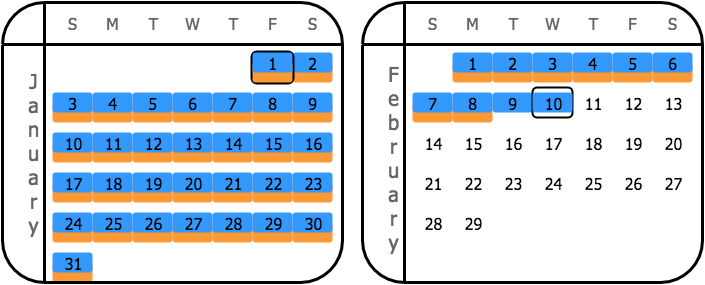 ### Document 2 Credit period: 1/16/2021–2/25/2021 Cash discount period: 1/16/2021–2/8/2021 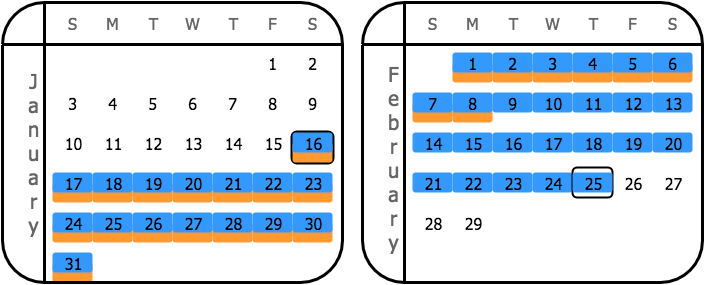|
Related pages
Concepts
Tasks
Windows
Configure single-instalment payment terms
/visma-net-erp/help/customer-ledger/manage-credit-policy/payment-terms/configure-single-instalment-payment-terms
section
You use the Payment terms (CS206500) window to define each set of payment terms, including due dates and conditions for cash discounts when an outstanding balance is paid early.
2026-02-19T17:09:06+01:00
# Configure single-instalment payment terms
You use the Payment terms (CS206500) window to define each set of payment terms, including due dates and conditions for cash discounts when an outstanding balance is paid early.
For more information: [Payment terms (CS206500)](/visma-net-erp/help/common-settings/common-settings-windows/payment-terms-cs206500/).
You use the [Payment terms (CS206500)](/visma-net-erp/help/common-settings/common-settings-windows/payment-terms-cs206500/) window to define each set of payment terms, including due dates
and conditions for cash discounts when an outstanding balance is paid early.
For a
set of payment terms, you can specify the payment as a single instalment (described
in this topic) or as multiple instalments (described in [Configure multiple-instalment payment terms](/visma-net-erp/help/customer-ledger/manage-credit-policy/payment-terms/configure-multiple-instalment-credit-terms/)).
1. Go to the [Payment terms (CS206500)](/visma-net-erp/help/common-settings/common-settings-windows/payment-terms-cs206500/) window.
1. In the **General information** section, in the **Terms ID** field, type the ID of the payment terms. The ID may contain up to ten characters.
> [!NOTE]
> We do not recommend using any special symbols in the IDs of entities.
1. In the **Description** field, type the description of the terms.
1. In the **Visible to** field, select the visibility of these payment terms (that is, under what circumstances they are listed and available for selection). The following options are available:
+ **All**: The terms can be assigned to both suppliers and customers.
+ **Suppliers**: The terms can be assigned to suppliers only.
+ **Customers**: The terms can be assigned to customers only.
+ **Disabled**: The terms are removed from the selection lists for both suppliers and customers.
1. In the **Instalment type** field of the **Instalments settings** section, select **Single**.
1. In the **Due date type** field of the **Due day settings** section, select the due date type. For detailed descriptions of the options, see: [About payment terms](/visma-net-erp/help/customer-ledger/manage-credit-policy/payment-terms/about-payment-terms/).
1. Depending on the due date type, specify the values of the other available elements (if any) in the **Due day settings** section.
1. Optional: In the **Cash discount settings** section, enter the settings that affect the discount for an early payment:
1. In the **Discount type** field, select the discount date type. The availability of options depends on the option selected as the **Due date type**.
1. In the **Discount day** field, specify the number of days or the particular day of the month, depending on the option selected in the **Discount type** field. (This field is unavailable for some **Discount type** options.)
1. In the **Discount %** field, specify the percent to be applied to the document total amount to calculate the discount percentage.
1. Click .
Configure multiple-instalment credit terms
/visma-net-erp/help/customer-ledger/manage-credit-policy/payment-terms/configure-multiple-instalment-credit-terms
section
You use the Payment terms (CS206500) window to define each set of payment terms.
2026-02-19T17:09:06+01:00
# Configure multiple-instalment credit terms
You use the Payment terms (CS206500) window to define each set of payment terms.
For more information: [Payment terms (CS206500)](/visma-net-erp/help/common-settings/common-settings-windows/payment-terms-cs206500/).
You use the [Payment terms (CS206500)](/visma-net-erp/help/common-settings/common-settings-windows/payment-terms-cs206500/) window to define each set of payment terms.
For a set of payment terms, you can specify payment as a single instalment (described in [Configure single-instalment payment terms](/visma-net-erp/help/customer-ledger/manage-credit-policy/payment-terms/configure-single-instalment-payment-terms/)) or as multiple instalments
(described in this topic).
1. Go to the [Payment terms (CS206500)](/visma-net-erp/help/common-settings/common-settings-windows/payment-terms-cs206500/) window.
1. In the **General information** section, in the **Terms ID** field, type the ID of the payment terms. The ID may contain up to ten characters.
> [!NOTE]
> We do not recommend using any special symbols in the IDs of entities.
1. In the **Description** field, type the description of the terms.
1. In the **Visible to** field, select the visibility of these payment terms (that is, under what circumstances they are listed and available for selection). The following options are available:
+ **All**: The terms can be assigned to both suppliers and customers.
+ **Suppliers**: The terms can be assigned to suppliers only.
+ **Customers**: The terms can be assigned to customers only.
+ **Disabled**: The terms are removed from the selection lists for both suppliers and customers.
1. In the **Instalment type** field of the **Instalments settings** section, select **Multiple**.
1. In the **Instalment method** field, select the instalment method, which determines how the system calculates the instalment amounts.
1. If you selected the **Equal parts** or **VAT in first instalment** instalment method, do the following:
1. In the **Number of instalments** field, type the number of instalments.
1. In the **Instalment frequency** field, select the instalment frequency.
1. If you selected the **Split by percent in table** method, do the following for each instalment:
1. In the **Instalments schedule** table toolbar, click ****.
1. In the **Days** column, type the number of days from the due date on which this particular instalment is due.
1. In the **Percent** column, type the percent of the instalment.
1. In the **Due date type** field of the **Due day settings** section, select the due date type. For detailed descriptions of the options, see: [About payment terms](/visma-net-erp/help/customer-ledger/manage-credit-policy/payment-terms/about-payment-terms/).
1. Depending on the due date type, specify the values of the other available elements (if any) in the **Due day settings** section.
1. Click .
Disable credit terms
/visma-net-erp/help/customer-ledger/manage-credit-policy/payment-terms/disable-credit-terms
section
You use the Payment terms (CS206500) window to define each set of payment terms, as well as to change the target audience for which the terms are visible or disable a particular set of payment terms.
2026-02-19T17:09:06+01:00
# Disable credit terms
You use the Payment terms (CS206500) window to define each set of payment terms, as well as to change the target audience for which the terms are visible or disable a particular set of payment terms.
For more information: [Payment terms (CS206500)](/visma-net-erp/help/common-settings/common-settings-windows/payment-terms-cs206500/).
1. Go to the [Payment terms (CS206500)](/visma-net-erp/help/common-settings/common-settings-windows/payment-terms-cs206500/) window.
1. In the **General information** section, in the **Terms ID** field, select the ID of the payment terms that you want to disable.
1. In the **Visible to** field, select the **Disabled** option.
1. Click .
Related pages
Concepts
Tasks
Windows