Create a drop-ship order flow
/visma-net-erp/help/purchases/process-purchase-orders/create-a-drop-ship-order-flow
section
Drop shipping is a type of sales order fulfilment in which the customers order goods from your company, receive them directly from a supplier (wholesaler or manufacturer), and send payments for the orders to your company.
2026-02-19T17:09:06+01:00
# Create a drop-ship order flow
Drop shipping is a type of sales order fulfilment in which the customers order goods from your company, receive them directly from a supplier (wholesaler or manufacturer), and send payments for the orders to your company.
Drop shipping is a type of sales order fulfilment in which the customers order goods
from your company, receive them directly from a supplier (wholesaler or manufacturer),
and send payments for the orders to your company.
The quantities of stock items on
completed drop-ship orders are not included in the quantities available at any
warehouse of your company, and the data in the Inventory workspace is not updated by
the data from completed drop-ship orders.
With Visma Net, you can create drop-ship orders for goods that should be delivered directly to a
customer location.
Stock items and non-stock items (those that have the
**Require receipt** check box selected in the [Non-stock items (IN202000)](/visma-net-erp/help/inventory/inventory-windows/non-stock-items-in202000/) window) may be drop-shipped; kits cannot
be drop-shipped, because they are manufactured in the company.
Drop-ship orders are created based on sales orders and on requisitions created for customers.
## Configuration
In Visma Net, the functionality of drop-ship orders is available only if the **Drop shipments** functionality is enabled in the [Enable/disable functionalities (CS100000)](/visma-net-erp/help/common-settings/enable-or-disable-functionalites/enable-disable-functionalities-cs100000/) window.
Before you start creating and processing drop-ship orders, make sure that the **Drop shipments** functionality is enabled and that each warehouse has a default location
for drop-ship orders selected in **Drop-ship location** field in the [Warehouses (IN204000)](/visma-net-erp/help/inventory/inventory-windows/warehouses-in204000/)
window.
Because specifying a
warehouse and warehouse location is mandatory for all inventory documents, the
system will automatically insert this location in all documents generated for
drop-ship orders.
## Drop-ship order flow
In general, the processing of drop-ship orders that originated in the Inventory workspace involves using the following actions and generating the following documents:
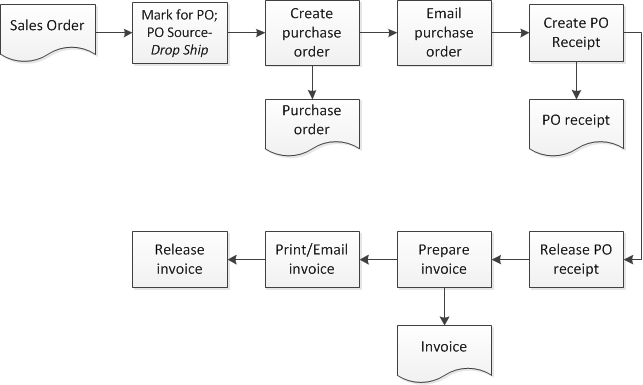
The processing steps are described in more detail in the following sections below:
### Enter a sales order intended for drop-shipping
To create a drop-ship purchase order from a sales order by using the [Sales orders (SO301000)](/visma-net-erp/help/sales/sales-windows/sales-orders-so301000/) window, follow the steps below:
1. Go to the [Sales orders (SO301000)](/visma-net-erp/help/sales/sales-windows/sales-orders-so301000/) window.
1. In the top part, select **SO** as the order type.
1. Select the customer and review the default location and currency values. Change these if needed.
1. Go to the **Document details** tab.
1. Specify the branch.
1. Specify the item ID of the requested stock item.
1. Select a warehouse. For items that are usually sold by using drop-ship orders and do not require replenishment, you can create a virtual warehouse and assign it to the replenishment class with the **Drop-shipment** option as the replenishment source.
1. Specify the quantity. Make sure the unit of measure selected by default is correct.
1. Type the price if it has not appeared by default from the supplier catalogue (if one is maintained in your system).
1. Select the **Mark for purchase order** check box.
1. Specify **Drop-shipment** as the **Purchase order source**.
1. Make sure the **Hold** check box is cleared and save the order.
The order status changes to **Open** and **Create purchase order** becomes available on
the **Actions** menu of the toolbar.
Click this action to open the
appropriate window as a pop-up window so that you can create a drop-ship purchase
order for this sales order.
### Generate a drop-ship purchase order
Drop-ship orders can be automatically generated for multiple sales orders or can be created one-by-one for each sales order.
To create a drop-ship purchase order for a particular sales order in the [Purchase orders (PO301000)](/visma-net-erp/help/purchases/purchases-windows/purchase-orders-po301000/) window, follow the steps below:
1. Go to the [Purchase orders (PO301000)](/visma-net-erp/help/purchases/purchases-windows/purchase-orders-po301000/) window.
1. In the **Type** field of the top part, select **Drop-ship** or a custom order type used in your organisation for drop shipping.
1. Select the supplier that will deliver the goods or services to the customer.
1. On the **Document details** tab, click **View sales order demand** on the table toolbar to view the sales orders that require drop shipping.
1. In the table of the dialog box, select the check box next to the order (or select multiple orders) and close the dialog box.
1. Edit the order if needed.
1. Make sure the **Hold** check box is cleared and save the order.
To save time, you can create drop-ship purchase orders in bulk by using the [Create purchase orders (PO505000)](/visma-net-erp/help/purchases/purchases-windows/create-purchase-orders-po505000/) window as follows:
1. Go to the [Create purchase orders (PO505000)](/visma-net-erp/help/purchases/purchases-windows/create-purchase-orders-po505000/) window.
1. In the **Order type** field of the top part of the window, select **Sales order** or a custom order type used in your organisation for drop shipping.
1. To select specific sales orders, filter the list of sales orders by a product manager, product work group, item class, warehouse, or supplier. This selects orders with a specific preferred supplier of the goods in the order.
1. Make sure each of the sales order lines listed in the table have the proper supplier specified.
1. Select the sales orders by using the check boxes to the left and click **Process** in the toolbar, or click **Process all** to generate purchase orders for all listed sales orders. The system generates the required drop-ship purchase orders.
### Create a purchase receipt for a drop-ship order
To create a receipt, you need a confirmation that the customer received the goods or services
from the supplier.
Confirmation may be received through a call, an email, or another
means.
Based on business routines established in your company, you can create
purchase receipts on receiving invoices from the suppliers or when you have heard from
the customer, or you can create purchase receipts in advance and release them upon
entering supplier invoices as invoice.
You can use the [Purchase orders (PO301000)](/visma-net-erp/help/purchases/purchases-windows/purchase-orders-po301000/) window to create a receipt manually for each drop-ship purchase order in the following way:
1. Go to the [Purchase orders (PO301000)](/visma-net-erp/help/purchases/purchases-windows/purchase-orders-po301000/) window.
1. Select the order fulfilled by drop-shipment.
1. From the **Actions** menu, select **Enter purchase order receipt**. The [Purchase receipts (PO302000)](/visma-net-erp/help/purchases/purchases-windows/purchase-receipts-po302000/) window opens with the order data filled in.
1. For each item that is tracked by lot or serial numbers and for which the **Required for drop shipments** check box is selected in the [Lot/serial classes](/visma-net-erp/help/inventory/inventory-windows/lot-serial-classes-in207000/) window, click **Allocations** on the table toolbar and assign the lot numbers to specific quantities or the serial numbers to particular units of the item. The system ignores the assignment method of the lot/serial class for items on drop-ship orders and, by default, requires assignment on receipt.
1. Type the control totals if required in your system.
1. Click **Release** in the toolbar. The status of the original sales order changes to **Completed**.
Also, you can create a receipt for multiple orders of the same supplier by using the [Purchase orders (PO301000)](/visma-net-erp/help/purchases/purchases-windows/purchase-orders-po301000/) window as follows:
1. Go to the [Purchase orders (PO301000)](/visma-net-erp/help/purchases/purchases-windows/purchase-orders-po301000/) window.
1. Select **Receipt** as the document type.
1. Select the supplier that delivered the goods or services to the customers.
1. In the table toolbar of the **Document details** tab, click **Add purchase order**.
The **Add purchase order** dialog box opens with the list of the supplier's open orders.
1. Use the check boxes to the left of orders to select the orders to be added to the receipt.
1. Click .
1. For each item that is tracked by lot or serial numbers and for which the **Required for drop shipments** check box is selected in the [Lot/serial classes](/visma-net-erp/help/inventory/inventory-windows/lot-serial-classes-in207000/) window, click **Allocations** in the table toolbar and assign the lot numbers to specific quantities or the serial numbers to particular units of the item. The system ignores the assignment method of the lot/serial class for items on drop-ship orders and, by default, requires assignment on receipt.
1. Type the control totals, if required in your system.
1. Make sure the **Hold** check box is cleared, and save the receipt.
1. Click **Release** in the toolbar.
The status of the original sales order changes to **Completed**.
### Create an invoice for the drop-ship order
To create an invoice for the drop-ship order in the [Process shipments](/visma-net-erp/help/sales/sales-windows/process-shipments-so503000/) window, proceed as follows:
1. Go to the [Process shipments](/visma-net-erp/help/sales/sales-windows/process-shipments-so503000/) window.
1. In the top part of the window, select **Prepare drop-ship invoice** in the **Action** field.
1. Select the customer to view the customer's receipts.
1. In the table, select the check boxes next to the receipts you want to include in an invoice.
1. Click **Process**. One invoice or multiple invoices will be generated based on whether the **Invoice separately** option is selected for the order type (the invoices will be grouped by order type) and whether the similar ( **Invoice separately** ) option is selected for the customer in the [Customers (AR303000)](/visma-net-erp/help/customer-ledger/customer-ledger-windows/customers-ar303000/) window. The generated invoices are linked to the original sales orders.
1. Release invoices one-by-one by using the [Customers (AR303000)](/visma-net-erp/help/customer-ledger/customer-ledger-windows/customers-ar303000/) or the [Customer invoices](/visma-net-erp/help/sales/sales-windows/customer-invoices-so303000/) window, or release them in bulk using the [Release customer documents](/visma-net-erp/help/customer-ledger/customer-ledger-windows/release-customer-documents-ar501000/) window.
Related pages
Concepts