About sales orders with allocations
/visma-net-erp/help/sales/process-sales-orders/about-sales-orders-with-allocations
section
In Visma Net, you can reserve stock when you enter sales orders so that the items promised to a customer can’t be shipped to another customer.
2026-02-19T17:09:06+01:00
# About sales orders with allocations
In Visma Net, you can reserve stock when you enter sales orders so that the items promised to a customer can’t be shipped to another customer.
In Visma Net, you can reserve stock when you enter sales orders so that the items promised to a customer can’t be shipped to another customer.
In cases when items are stocked at multiple warehouses, this helps your company avoid overstocks and stock outs because the system gives you the ability to reserve items at any warehouse and automates generating of transfers.
This article describes the allocation options available for orders of the **SO** and**SA** predefined types.
For descriptions of the order types, see: [About predefined types of sales orders.](/visma-net-erp/help/sales/manage-document-types-and-work-flows/about-predefined-types-of-sales-orders/)
> [!NOTE]
> Notice that in your system, the predefined order types can be modified.
## Quantities booked and allocated
Fulfillment of sales orders is most effective if the system displays correct information about the quantities of items that are on hand and available for shipping.
For orders of different types, the system reflects the quantities of items on the orders differently.
(For more information, see: [About predefined types of sales orders](/visma-net-erp/help/sales/manage-document-types-and-work-flows/about-predefined-types-of-sales-orders/).)
The quantities of the items listed on sales orders of the **SO** type (regular sales orders) are generally shown in the system as the **SO prepared** quantities for orders with the **On hold**, **Credit hold**, **Pending approval**,and **Rejected** statues and as the **SO booked** quantities for orders with the **Open** status.
You can view the availability information in the [Inventory allocation details](/visma-net-erp/help/inventory/inventory-windows/inventory-allocation-details-in402000/) window.
The **SO booked**quantities are those shown on sales orders but not associated with particular orders.
Booking imposes no actual restrictions on items. The booked quantities are shown for informational purposes only; these quantities of the items can be picked for any other orders and shipped. For sales orders of the **SA** type (sales orders), once a user saves a new sales order even with the **On hold** status, the system performs virtual **allocation** of the items for this order.
That is, it actually reserves the requested quantities of the items.
The quantities of the items that have been allocated for the order are added to**SO allocated** quantities and deducted from **Available for shipping** quantities (both of which are reflected in the [Inventory allocation details](/visma-net-erp/help/inventory/inventory-windows/inventory-allocation-details-in402000/) window); thus, these quantities cannot be shipped for another order.
If the ordered quantity is available only partially and cannot be fully allocated at the specified locations, the quantity that has been allocated for the order will be added to the **SO allocated** quantity, while the remaining (unallocated) quantity will be added to the **SO back ordered** quantity.
Once you allocate this quantity in other warehouses, the quantity is moved to **SO allocated**.
> [!NOTE]
> Non-stock items are considered as always available and cannot be allocated.
The sections below describe in greater detail how the stock allocations are performed and how the quantities of the allocated items are reflected in the system.
## Allocation schedules for SA orders
When you save an order of the **SA** type in the [Sales orders (SO301000)](/visma-net-erp/help/sales/sales-windows/sales-orders-so301000/) window, the system automatically attempts to reserve the requested quantities of all line items in the specified warehouse.
If you select any line of the order, you can then click**Allocations** in the toolbar of the **Document**details tab, and view whether the entire ordered quantity of the line item has been successfully reserved (allocated).
For any of the line items, if the quantity in the specified warehouse is less than the requested quantity, the system reserves the available quantity for the order line and adds an additional allocation line for the remaining quantity.
You can manually allocate the remaining quantity (or a part of it) in another warehouse or multiple warehouses.
If you attempt to create a shipment before you allocate the entire quantities and if partial shipment is allowed by the specified line-level and order-level shipping rules, the system will be able to include only the allocated quantities into the shipment even if the ordered quantities are available for shipping at another location or locations but were not allocated for the order.
> [!NOTE]
> The **Allocations** button in the [Sales orders (SO301000)](/visma-net-erp/help/sales/sales-windows/sales-orders-so301000/) window is available if at least one of the following functionalities is enabled in your system: **Sales order to purchase order link**, **Multiple warehouse locations**, or **Lot and serial tracking**.
To reserve the remaining quantity, you can choose one of the following scenarios:
+ You can specify another warehouse or multiple warehouses from which you can transfer the remaining quantity of the item. Select the **Allocated** check box for each additional line, specify the warehouse, and save the order. You can generate transfer orders for this sales order in the [Create transfer orders (SO509000)](/visma-net-erp/help/sales/sales-windows/create-transfer-orders-so509000/) window, and record the receipt of the transferred quantities on a purchase receipt by using the [Purchase receipts (PO302000)](/visma-net-erp/help/purchases/purchases-windows/purchase-receipts-po302000/) window. After all the quantities of all line items are transferred to a single warehouse, you can create a shipment for the order. See the flowchart for this scenario below: 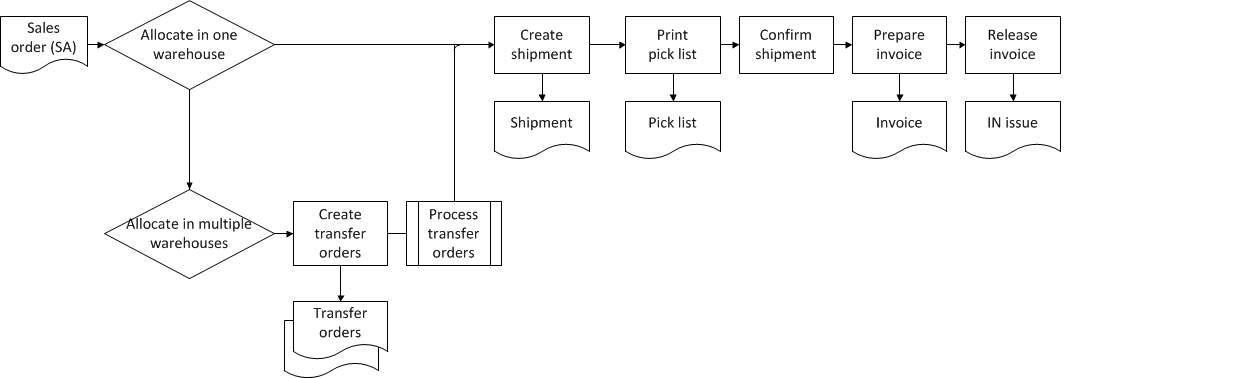
For details on processing transfer orders, see: [About processing transfer orders](/visma-net-erp/help/sales/process-transfer-orders/about-processing-transfer-orders/).
+ You can purchase the remaining quantity if the item is out of stock at other warehouses too. Whether or not you can create partial shipments depends on the shipping rules specified for the orders lines and for the whole order. [About shipping rules](/visma-net-erp/help/sales/process-sales-orders/about-shipping-rules/). You can specify that the remaining quantity should be purchased for the order by selecting the **Mark for** purchase order check box for the line on the **Details** tab. Once you take the sales order off hold, the order appears in the [Create purchase orders (PO505000)](/visma-net-erp/help/purchases/purchases-windows/create-purchase-orders-po505000/) window and you can generate a purchase order which will be linked to the original sales order. The quantity initially allocated for the order, remains allocated while the quantity that must be purchased remains unallocated. Once receipts for the remaining quantities are released, you can allocate the initially unallocated quantities manually by using the **Allocations dialog box** in the [Sales orders (SO301000)](/visma-net-erp/help/sales/sales-windows/sales-orders-so301000/) window. Even if the **Replan back-orders** check box is selected in the [Inventory preferences (IN101000)](/visma-net-erp/help/inventory/inventory-windows/inventory-preferences-in101000/) window, releasing inventory receipts does not update automatically plan types for sales orders with allocations (on release of receipts, the unallocated quantities still are shown as **Back ordered** until you manually allocate them).
For more information, see:
## Allocation schedules for sales orders
If you have a sales order of the **SO** type, you may choose to allocate (reserve) the requested quantity for a specific item or multiple items if this is required by your company policies or was requested by the customer.
If you perform allocation for any item on a sales order with the **On hold**, **Credit hold**, **Pending approval**, **Rejected**,or **Open** status, the item quantity will be added to the **SO**allocated quantity shown for the item in the [Inventory allocation details](/visma-net-erp/help/inventory/inventory-windows/inventory-allocation-details-in402000/) window.
Also, you may want to reserve the line item if the item is available but the quantity required for the order line is distributed between different warehouses and one or more transfers are required.
> [!NOTE]
> Transfer orders will be automatically generated only for the allocation schedules with the **Allocated** check box selected.
## Use of the allocations dialog box
To allocate stock for a particular **SO** order, you use the**Allocations** dialog box, which opens once you click**Allocations** in the table toolbar of the **Document**details tab of the [Sales orders (SO301000)](/visma-net-erp/help/sales/sales-windows/sales-orders-so301000/) window.
The**Allocations** dialog box can be invoked for each line of a sales order of the **SO** or **SA** type.
By using this dialog box, for sales orders of the **SO** type, you can select whether to reserve the requested quantities in a single warehouse or multiple warehouses.
For orders of the **SA** type, you can process the additional allocation lines generated by the system if the requested quantity cannot be shipped from the warehouse specified in the order.
If the order line is marked for purchasing, the system automatically selects the **Mark for purchase order** check box for the line with the unallocated quantity in the **Allocations dialog box**.
Also, you can use the **Allocations dialog box** to track the order fulfillment.
For each allocation line, the **Related document** column contains the reference number of the document related to the current stage of the order fulfillment.
> [!NOTE]
> To view all the related documents, make sure the **Active** filter is not applied to the list of allocations.
## Availability calculation for orders with and without allocations
The way the order quantity is reflected in the system depends on the settings selected for the item class in the [Item classes (IN201000)](/visma-net-erp/help/inventory/inventory-windows/item-classes-in201000/) window.
Generally, as the status of a sales order of the **SO** type changes, the order quantity updates the following total quantities:
+ The **SO prepared** quantity If the item's quantity is listed on an order with the **On Hold**, **Credit hold**, **Rejected**, or **Pending approval** status.
+ The **SO booked** quantity Once the order has been open with no quantities allocated.
+ The **SO allocated** quantity Once the shipment is created, the quantity that is included in the shipment.
+ The **On hand** quantity After the shipment has been confirmed and an invoice and inventory issue have been generated.
The line item quantity on a sales order of the **SA** type updates the following quantities:
+ The **SO allocated** quantity Once a sales order of the **SA** type is created.
+ The **Back ordered** quantity The unallocated quantity that remains on the order.
+ The **SO allocated** quantity Once the received quantity (initially unallocated) is also allocated for the order. When a shipment is created, the quantity remains **SO allocated**.
+ The **On hand** quantity After the shipment has been confirmed and an invoice and an inventory issue have been generated.
Related pages
Concepts
Tasks
Windows