Sample Project
/vismanetapi/setting-up-your-integration/ui-automation/sample-project
section
Information about the sample project to help you begin building your application.
2025-11-28T09:38:52+01:00
# Sample Project
Information about the sample project to help you begin building your application.
## Using the sample project
If you need help getting started building your application, this section
has information about a sample project to help you begin.
## Download sample project
The sample project can be found at:
[extensions-framework-samples.git](https://github.com/Visma-Software-AB-Integration-Ecosystem/extensions-framework-samples.git)
> \[!TIP\]
>
> Check the README.md files to understand the code.
## Highlevel overview of code
The code contains an ASP.Net Core 8.0 Web API that hosts a Vue.JS
Single-Page Application (SPA) within itself. In the frontend, there is a
menu where the user can choose between API requests or Window requests.
The API requests go to the backend (Web API) within the application
itself (Sample application). When the backend receives the requests, it
will send another request to **Visma Net** using the **Interactive
API**.
The implemented requests towards the ERP are the following:
- **GET** to /v1/supplier/supplierClass
- **POST** to /v1/supplierInvoice
The Window requests are sent to Visma Net ERP when running an UI
Automation inside the ERP. When there is a response sent from the window
communication, the application takes care of it as well.
When the application is running, the user is represented with a menu
that contains a choice for doing either API or Window Requests. When
choosing **API Requests**, they are presented with the following screen:
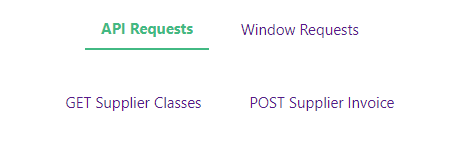
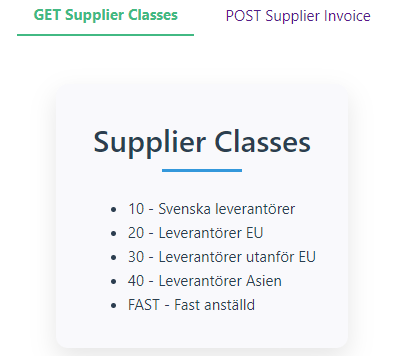
Here they get to choose which type of request they would like to send,
the **Get Supplier Classes**-choice will display supplier classes from
Visma Net as expected:
The **POST Supplier Invoice**-choice presents you with a form for
creating a Supplier Invoice:

When choosing the **Window Requests**-option, the user is instead
presented with this screen:
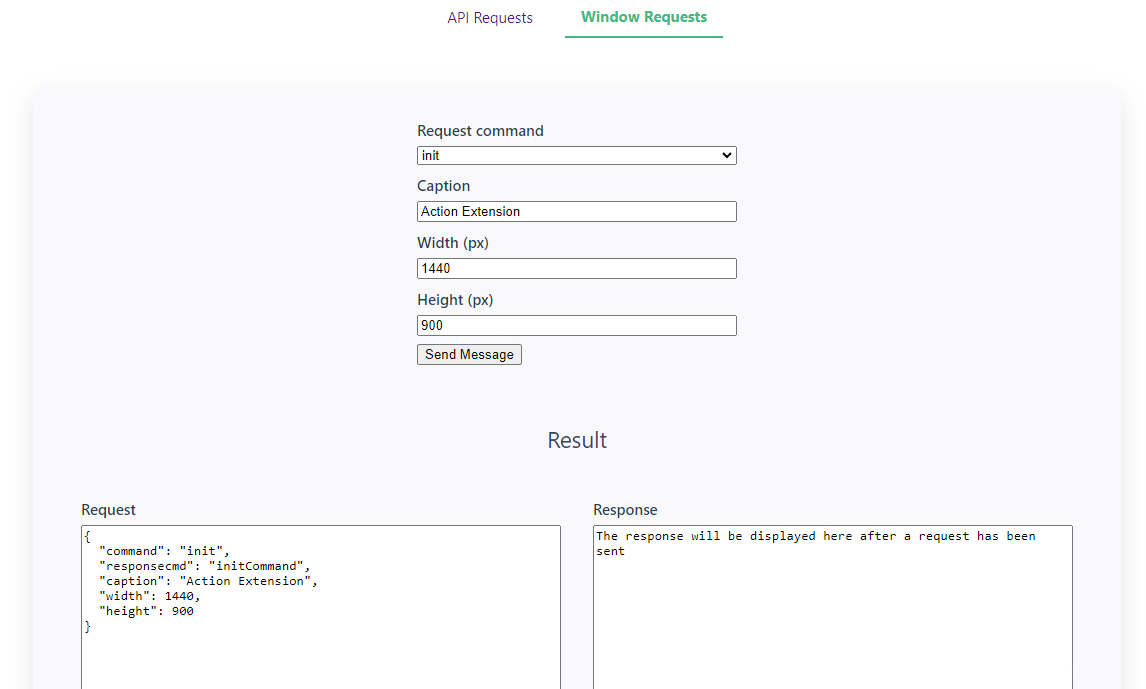
This contains a choice of request commands that is talked about more in
the section Messages from/to Visma Net
It will also show how the **Request** is "built up" when changing the
values in the top, and the response shows up in the **Response**-area
after a message has been sent.