Overdue charges
/visma-net-erp/help/customer-ledger/manage-credit-policy/overdue-charges
section
2026-02-19T17:09:06+01:00
# Overdue charges
About overdue charges
/visma-net-erp/help/customer-ledger/manage-credit-policy/overdue-charges/about-overdue-charges
page
In Visma Net, you can set up the functionality that makes the system to calculate overdue charges and show them on customer statements to inform customers of additional charges they have incurred for documents that are past due.
2026-02-19T17:09:06+01:00
# About overdue charges
In Visma Net, you can set up the functionality that makes the system to calculate overdue charges and show them on customer statements to inform customers of additional charges they have incurred for documents that are past due.
You can define multiple overdue charge codes (particular overdue charge IDs) with their own rates and other settings that affect when and how overdue charges are applied. Thus, you can adjust Visma Net to fit your existing policies and any policies you want to implement in the future.
The system calculates overdue charges for all customer accounts for which overdue charges are assigned, except for accounts with the **Inactive** or **On hold** status in the [Customers (AR303000)](/visma-net-erp/help/customer-ledger/customer-ledger-windows/customers-ar303000/) window.
This functionality is available only if the **Overdue charges** functionality is enabled in the [Enable/disable functionalities (CS100000)](/visma-net-erp/help/common-settings/enable-or-disable-functionalites/enable-disable-functionalities-cs100000/) window.
## Set up the overdue charge collection process
You perform the following steps to configure the collection and processing of overdue charges:
1. In the [Overdue charges (AR204500)](/visma-net-erp/help/customer-ledger/customer-ledger-windows/overdue-charges-ar204500/) window, you configure at least one overdue charge code, which defines the calculation method and the criteria for collecting charges. For details, see [About overdue charge code definition](/visma-net-erp/help/customer-ledger/manage-credit-policy/overdue-charges/about-overdue-charge-code-definition/).
1. In the [Customer classes (AR201000)](/visma-net-erp/help/customer-ledger/customer-ledger-windows/customer-classes-ar201000/) window, you do the following for each customer class whose customers you want to be subject to overdue charge collection:
1. Select the **Apply overdue charges** check box.
1. Associate the overdue charge code you created with the customer class by specifying the code in the **Overdue charge ID** field.
When a new customer account is created in the [Customers (AR303000)](/visma-net-erp/help/customer-ledger/customer-ledger-windows/customers-ar303000/) window and a customer class is selected, the customer class supplies the default value of the **Apply overdue charges** check box (on the **General info** tab). You can change this default value for any customer account. If the customer account is subject to overdue charge collection (that is, if this check box is selected for the customer), for all of the customer's debit documents, the system displays the **Apply overdue charge** check box on the **Financial details** tab of the [Sales invoices (AR301000)](/visma-net-erp/help/customer-ledger/customer-ledger-windows/sales-invoices-ar301000/) window. By default, the check box is selected, but you can clear the check box for a particular document.
The following options, located in the [Customer ledger preferences (AR101000)](/visma-net-erp/help/customer-ledger/customer-ledger-windows/customer-ledger-preferences-ar101000/) window, affect all customers that are subject to overdue charges and can be set to fit your company's policies:
Apply payments to overdue charges first
: If this check box is selected, payments will be applied first to overdue charges and only then to outstanding invoices, starting with those having the earliest dates. Payment can be applied to a particular invoice only if the **Apply payments automatically** check box is selected for a customer in the [Customers (AR303000)](/visma-net-erp/help/customer-ledger/customer-ledger-windows/customers-ar303000/) window.
Calculate on overdue charges documents
: If this check box is selected, overdue charges will be calculated on overdue charge documents as well as on invoices; thus, the amount of overdue charges compounds.
After configuration is done, you use the [Calculate overdue charges (AR507000)](/visma-net-erp/help/customer-ledger/customer-ledger-windows/calculate-overdue-charges-ar507000/) window to process the overdue documents of customer accounts that are associated with the statement cycle you select in this window. For details, see [Calculate overdue charges](/visma-net-erp/help/customer-ledger/manage-credit-policy/overdue-charges/calculate-overdue-charges/).
## Set up the calculation of overdue charges by statement cycle
By default, the system uses the overdue charge code specified in the applicable customer class to calculate overdue charges. Alternatively, you can indicate to the system that the code should be taken from the applicable statement cycle to calculate charges.
Customer accounts are initially assigned the statement cycle, if any, specified for their customer class. But specifying a statement cycle in a customer class is not mandatory, as it is for a customer account. Additionally, for each customer, you may override the statement cycle that was assigned by default. Therefore, customer accounts within the same customer class may have different statement cycles.
You perform the following steps to set up overdue charge calculation by using the code specified in the statement cycle:
1. In the [Statement cycles (AR202800)](/visma-net-erp/help/customer-ledger/customer-ledger-windows/statement-cycles-ar202800/) window, you specify an overdue charge code for each statement cycle used in the system. You may associate different codes with different statement cycles or use the same code for all statement cycles.
1. In the [Customer ledger preferences (AR101000)](/visma-net-erp/help/customer-ledger/customer-ledger-windows/customer-ledger-preferences-ar101000/) window, you select the **Set default overdue charges by statement cycle** check box, to indicate to the system that the source of the overdue charge code is the statement cycle of the customer account.
After you have performed these configuration steps, the system will use the overdue charge code assigned to the applicable statement cycle to calculate overdue charges for customers and documents included in the charge collection process.
## Process overdue documents
You process the calculation of the overdue charges for the overdue documents (that is, invoices and debit notes) in the [Calculate overdue charges (AR507000)](/visma-net-erp/help/customer-ledger/customer-ledger-windows/calculate-overdue-charges-ar507000/) window. In this window, once you specify the criteria in the selection area, the system displays the documents that comply with the following requirements:
+ The customer of the document is subject to overdue charges or the **Apply overdue charges** check box is selected for the customer account in the **General info** tab of the [Customers (AR303000)](/visma-net-erp/help/customer-ledger/customer-ledger-windows/customers-ar303000/) window.
+ The document is subject to overdue charges or the **Apply overdue charge** check box is selected for the document on the **Financial details** tab of the [Sales invoices (AR301000)](/visma-net-erp/help/customer-ledger/customer-ledger-windows/sales-invoices-ar301000/) window.
To run the calculation process, you click **Calculate** on the window toolbar. If the **Calculate on overdue charges documents** check box is cleared in the [Customer ledger preferences (AR101000)](/visma-net-erp/help/customer-ledger/customer-ledger-windows/customer-ledger-preferences-ar101000/) window, the system calculates simple charges by doing the following:
+ Checking whether an invoice or a debit note is past due by using the associated credit terms
+ Calculating the charges for the days past due (if there are no previous overdue charges for the document)
+ Calculating the charges since the date of the last overdue charges (if overdue charges have been recorded for the document)
After the calculation is done, the system displays the list of overdue documents with the relevant details for each document, including the amounts of calculated overdue charges. You review the calculation results and process either the overdue documents you select (by using the unlabelled check boxes) or all of the documents by clicking either **Process** or **Process all** in the window toolbar.
The result of processing is a customer ledger document of the **Overdue charge** type with the **Balanced** status (or the **On hold** status if **Hold documents on entry** is selected in the [Customer ledger preferences (AR101000)](/visma-net-erp/help/customer-ledger/customer-ledger-windows/customer-ledger-preferences-ar101000/) window).
If the system finds multiple overdue documents for the same customer account, it creates for this customer one document of the **Overdue charge** type that lists the charge amounts for each invoice.
You further process this document of the **Overdue charge** type by using the [Sales invoices (AR301000)](/visma-net-erp/help/customer-ledger/customer-ledger-windows/sales-invoices-ar301000/) window.
If the **Calculate on overdue charges documents** check box is selected in the [Customer ledger preferences (AR101000)](/visma-net-erp/help/customer-ledger/customer-ledger-windows/customer-ledger-preferences-ar101000/) window, the system searches for documents of the **Overdue charge** type as well and calculates charge amounts the same way as it does for the invoices and debit notes.
## Release documents of the Overdue charge type
You release a document of the **Overdue charge** type by using the [Sales invoices (AR301000)](/visma-net-erp/help/customer-ledger/customer-ledger-windows/sales-invoices-ar301000/) window. When you release an overdue document, the system generates a batch with the general ledger transactions. One transaction debits the customer ledger account referred to in the original document (which is usually the default customer ledger account for the customer), and the other transaction credits the Overdue charges account specified in the [Overdue charges (AR204500)](/visma-net-erp/help/customer-ledger/customer-ledger-windows/overdue-charges-ar204500/) window for that charge, as shown in the following table.
|Account|Debit|Credit|
|---|---|---|
|Customer ledger account|Amount|0.0|
|Overdue charges account|0.0|Amount|
If the system finds an unreleased overdue charge document for an overdue document (among other overdue documents of the particular customer), this document is marked with an error and no new overdue charge document is created for overdue documents of this customer account. You can select this document and click **View last charge** to view and release the existing overdue charge document. Then you can calculate and process overdue charges for overdue documents of this customer account again.
Overdue charges may be numbered differently from invoices or notes. VAT are not calculated on overdue charges, and discounts are not applicable to overdue charges.
## Exclude a customer or a document from the charge collection process
To exclude a customer account from the charge collection process, you clear the **Apply overdue charges** check box for the customer account on the **General info** tab of the [Customers (AR303000)](/visma-net-erp/help/customer-ledger/customer-ledger-windows/customers-ar303000/) window.
To exclude a particular document from the process, you clear the **Apply overdue charge** check box for the document on the **Financial details** tab of the [Sales invoices (AR301000)](/visma-net-erp/help/customer-ledger/customer-ledger-windows/sales-invoices-ar301000/) window.
Note: This check box is displayed for the document only if the customer of the document is included in the charge collection process.
About overdue charge code definition
/visma-net-erp/help/customer-ledger/manage-credit-policy/overdue-charges/about-overdue-charge-code-definition
section
By using the Overdue charges (AR204500) window, you can create an unlimited number of overdue charge codes or particular overdue charge entities with their own rates and settings.
2026-02-19T17:09:06+01:00
# About overdue charge code definition
By using the Overdue charges (AR204500) window, you can create an unlimited number of overdue charge codes or particular overdue charge entities with their own rates and settings.
For more information: [Overdue charges (AR204500)](/visma-net-erp/help/customer-ledger/customer-ledger-windows/overdue-charges-ar204500/).
By using the [Overdue charges (AR204500)](/visma-net-erp/help/customer-ledger/customer-ledger-windows/overdue-charges-ar204500/) window, you can create
an unlimited number of overdue charge codes or particular overdue charge entities with
their own rates and settings.
Overdue charges are applied in either the base currency or the
currency of the overdue document.
## Preliminary configuration steps
Before you start setting up overdue charge codes, you need to perform the following steps:
1. You create the following entities (or determine which existing entities you will use), which you need for collecting and recording the overdue charges:
+ A general ledger account of the **income** type and a corresponding subaccount (if applicable in your system) to record each overdue charge and each overdue fee, if you plan to charge one. You can use the same account for recording all overdue charges and overdue fees or create separate accounts for each overdue charge and each overdue fee. For details, see: [Add an account to the chart of accounts](/visma-net-erp/help/general-ledger/manage-chart-of-accounts/add-an-account-to-the-chart-of-accounts/).
+ Payment terms that provide a schedule for paying overdue charge documents. The payment terms used for overdue charges should be created without discounts. You can create just one set of payment terms for overdue charge documents or multiple sets. For details, see: [About payment terms](/visma-net-erp/help/customer-ledger/manage-credit-policy/payment-terms/about-payment-terms/).
1. You plan the overdue charge code or codes needed to suit your company's credit policy. The planning includes the following for each overdue charge code:
+ Selecting the calculation method to be used with the code
+ Deciding on the amount of the overdue charge
+ Deciding on the amount of the overdue fee, if you plan to charge one
+ Defining the criteria for creation of a document of the **Overdue charge** type for this code
The following sections provide detailed information about the settings of the overdue charge codes.
## Calculation methods
The system provides three calculation methods you can use to define the amount that is subject to overdue charges based on the number of days after the due date. The charges can be calculated either for open documents (those that are not fully paid) or for closed documents (those that are fully paid). The base all the methods use for calculation is the open balance of the overdue document.
The figure below and the examples show how interest is calculated when you use the different calculation methods. Note that the examples are in US dollars.
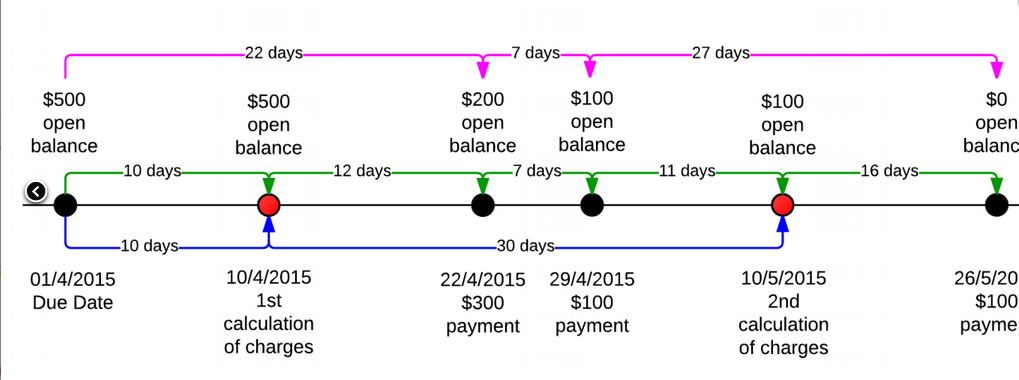
For each overdue charge code, you select one of the following options in the **Calculation method** field in the Overdue charges window:
Interest on open entries
: :
The overdue document is subject to charges until it is closed. To calculate the charges for the days past due, the system uses the document’s open balance as of the date of calculation. If overdue charges have been recorded for the document, the system calculates the charges for the number of days since the date of the last overdue charges.
The system calculates overdue charges as follows (the blue lines in the related figure):
1. On the first calculation of charges, the system applies charges to the $500 open entries for 10 days overdue.
1. On the second calculation of charges, the system applies charges to the $100 open entries for 30 days overdue.
1. On the third calculation of charges, the system does not apply charges because the document is fully paid.
Interest on open, partially paid and paid entries
: :
The overdue document is subject to charges until it is closed. To calculate the charges for the days past due, the system uses the document’s open balance for each of these days. If overdue charges have been recorded for the document, the system calculates the charges for the number of days since the date of the last overdue charges.
The system calculates overdue charges as follows (see the green lines in the figure):
1. On the first calculation of charges, the system applies charges to the $500 for 10 days overdue.
1. On the second calculation of charges, the system applies the sum of charges to the $500 for 12 days overdue, to the $200 for 7 days overdue, and to the $100 for 11 days overdue.
1. On the third calculation of charges, the system applies charges to the $100 for 16 days overdue.
Interest on paid entries
: :
The overdue document becomes subject to charges the moment it is closed. To calculate the charges for the days past due, the system uses the document’s open balance for each of these days.
1. The system calculates overdue charges when the document is fully paid (the point when the charges are calculated for the third time in the figure).
1. The charges are the sum of charges applied to the $500 open balance for 22 days overdue, to the $200 open balance for 7 days overdue, and to the $100 open balance for 27 days overdue (the pink lines in the figure).
The calculation method is used along with the charging method, described in the next section of this topic, to determine how overdue documents are charged for a particular overdue charge code.
## Charging methods
A charging method defines how the system charges an overdue document. An overdue charge can be defined either as a fixed amount or as a percentage (annual rate) on an open balance for the number of days late. If the overdue charge is a percentage, the following formula is used to calculate overdue charges, based on the number of days past due.
```
Charge amount = (Percent rate) \* (Number of days past due) \* Open balance / (365 \* 100)
```
A percentage can be configured with a fixed minimum amount or a threshold amount.
If you
configure a percentage with a fixed minimum amount, the system charges an overdue document
for at least the fixed minimum amount. If you configure a percentage with a threshold
amount, the system charges a document only if the calculated charge amount is greater than
or equal to the threshold amount.
For details, see the following subsections of this topic:
### Charging a percentage with a minimum amount
If you define an overdue charge as a percentage on an open balance for the number of days late with a minimum amount specified, the system charges a document as follows:
+ If the charge amount is less than the specified minimum amount, the system charges the document for the minimum amount.
+ If the charge amount is greater than or equal to the specified minimum amount, the system charges the document for the calculated charge amount.
To charge a percentage with a minimum amount, in the **Charging settings** section in the Overdue charges window, you do the following:
+ In the **Charging method** field, you select the **Percent with min. amount** option.
+ In the **Min. amount** field (which appears once you have selected this charging method), you specify the minimum amount an overdue document should be charged.
+ In the **Total threshold** field, you specify the minimum amount of the overdue charge document; if the total amount of the lines of the overdue charge document is less than the total threshold amount, the document will not be created.
+ In the table (which appears once you have selected this charging method), you specify percent rate (or rates) with the date when the rate becomes effective.
### Charging a percentage with a threshold amount
If you define an overdue charge as a percentage on an open balance for the number of days late with a threshold amount specified, the system charges a document as follows:
+ If the charge amount is less than the specified threshold amount, the system does not charge the document.
+ If the charge amount is greater than or equal to the specified threshold amount, the system charges a document for the calculated charge amount.
To charge a percentage with a threshold amount, in the **Charging settings** section in the Overdue charges window, you do the following:
+ In the **Charging method** field, you select the **Percent with threshold** option.
+ In the **Threshold** field (which appears once you have selected this charging method), you specify the amount of charges that should define whether to charge a document.
+ In the **Total threshold** field, you specify the minimum amount of the overdue charge document; if the total amount of the lines of the overdue charge document is less than the total threshold amount, the document will not be created.
+ In the table (which appears once you have selected this charging method), you specify a percent rate (or rates) with the date when the rate becomes effective.
### Charging a fixed amount
An overdue charge can be defined as a fixed amount. To define an overdue charge as a fixed amount, in the **Charging settings** section in the Overdue charges window, you do the following:
+ In the **Charging method** field, you select the **Fixed amount** option.
+ In the **Amount** field (which appears once you have selected this charging method), you specify the fixed amount of the charge for overdue documents.
+ In the **Total threshold** field, you specify the minimum amount of the overdue charge document; if the total amount of the lines of the overdue charge document is less than the total threshold amount, the document will not be created.
Thus, if an open balance of an overdue document is greater than zero, the system charges the specified fixed amount.
## Overdue fee
Some companies charge a fixed amount (a fee) for processing documents of the **Overdue charge** type.
In these cases, a customer must pay the fee amount in addition to the
amount of calculated overdue charges.
A fee is charged for each overdue charge document. An additional line with the fee amount is added to the document.
If your company charges a fee for processing late documents, in the Overdue charges (AR204500) window, for any overdue charge code, specify the following settings:
Fee amount
: The fixed amount to be charged for a document of the **Overdue charge** type. A customer pays the amount in addition to the amount of the overdue charges.
Fee account
: ( **Fee subaccount** ): The account (and subaccount, if applicable) to which fee amounts are recorded.
You can leave these fields empty if your company does not charge fees for overdue charge documents.
Related pages
Concepts
Tasks
Windows
About the criteria for creating an overdue charge document
/visma-net-erp/help/customer-ledger/manage-credit-policy/overdue-charges/about-the-criteria-for-creating-an-overdue-charge-document
page
The processing of overdue documents creates documents of the Overdue charge type.
2026-02-19T17:09:06+01:00
# About the criteria for creating an overdue charge document
The processing of overdue documents creates documents of the Overdue charge type.
When the system finds a customer's overdue document, the system adds this document as a line item to the document of the **Overdue charge** type (which is created once any overdue document is found). If the system has found multiple overdue documents of a customer, the system creates a document of the **Overdue charge** type with multiple lines. These documents of the **Overdue charge** type, also referred to as overdue charge documents, can be viewed in the [Sales invoices (AR301000)](/visma-net-erp/help/customer-ledger/customer-ledger-windows/sales-invoices-ar301000/) window.
You can set up a threshold amount that defines the amount of charges that should initiate the generation of an overdue charge document. You specify this threshold amount in the **Total threshold** field in the [Overdue charges (AR204500)](/visma-net-erp/help/customer-ledger/customer-ledger-windows/overdue-charges-ar204500/) window.
> [!NOTE]
> The overdue fee is not included in the overdue charge document amount that is compared to the threshold.
With the total threshold specified, the system decides whether to create an overdue charge document as follows:
1. It finds an overdue document of a customer or multiple documents of the customer.
1. It calculates the charge amount for each overdue document it found.
1. It compares the total amount of the calculated charges to the threshold amount, and then the system proceeds as follows:
+ If the total amount is greater than the threshold amount, the system creates an overdue charge document for the customer.
+ If the total amount is less than the threshold amount, the system does not create an overdue charge document for the customer.
For example, suppose that your company collects overdue charges only if the charge amount is greater than €10; you thus specify 10 in the **Total threshold** field. Further suppose that your company charges a fixed charge amount of €1. If a customer has at least 10 overdue documents, the system will create an overdue charge document to debit the customer account. If your company instead charges an annual rate, the system behaves in the same way. If the total of calculated percentages for a customer's overdue documents is greater than €10, the system creates an overdue charge document for the customer.
In addition to setting a threshold for the overdue charge amount, you can set a minimum amount and a threshold amount for adding a document as a line to the overdue charge document. You can configure the line threshold for only a charge that is defined as a percentage. To do this, you set up an overdue charge code on the [Overdue charges (AR204500)](/visma-net-erp/help/customer-ledger/customer-ledger-windows/overdue-charges-ar204500/) window and specify the **Charging a percentage with a minimum amount** or **Charging a percentage with a threshold amount** charging method. For details, see [About overdue charge code definition](/visma-net-erp/help/customer-ledger/manage-credit-policy/overdue-charges/about-overdue-charge-code-definition/).
## Overdue fee collection
You may want to charge your customers an additional fee each time overdue charges are
calculated.
In the **Overdue fee settings** section of the [Overdue charges (AR204500)](/visma-net-erp/help/customer-ledger/customer-ledger-windows/overdue-charges-ar204500/) window, you can specify the amount of the overdue fee and the account
and subaccount to register the collected fee to.
The fee is recorded as a separate line in the document of the **Overdue charge** type in the [Sales invoices (AR301000)](/visma-net-erp/help/customer-ledger/customer-ledger-windows/sales-invoices-ar301000/) window.
Related pages
Concepts
Tasks
Windows
Example of how to apply calculation methods
/visma-net-erp/help/customer-ledger/manage-credit-policy/overdue-charges/example-of-how-to-apply-calculation-methods
page
This topic provides examples of the overdue charge calculation methods that can be set in the system.
2026-02-19T17:09:06+01:00
# Example of how to apply calculation methods
This topic provides examples of the overdue charge calculation methods that can be set in the system.
Suppose that a customer's invoice is due on April 1; its open balance is €500 as of the due
date.
The customer paid the invoice after the due date with three payments: €300 on April 22,
€100 on April 29, and €100 on May 26.
The system calculates overdue charges on the 10th day of
each month.
The overdue charge amount is an annual rate of 10% and no thresholds are configured.
The system calculates the overdue charges differently, as described in the following sections of this topic, depending on the calculation method set for the overdue charge code in the [Overdue charges (AR204500)](/visma-net-erp/help/customer-ledger/customer-ledger-windows/overdue-charges-ar204500/) window.
## Interest on balance
If you select **Interest on balance** in the **Calculation method** field in the [Overdue charges (AR204500)](/visma-net-erp/help/customer-ledger/customer-ledger-windows/overdue-charges-ar204500/) window, the system calculates the overdue charges as follows:
1. On the first calculation of overdue charges, the system applies overdue charges to the €500 open balance for 10 days overdue and creates an overdue charge document in the amount of 0.1 \* 10 \* €500 / 365 = €1.37.
1. On the second calculation of overdue charges, the system applies overdue charges to the €100 open balance for 30 days overdue and creates an overdue charge document in the amount of 0.1 \* 30 \* €100 / 365 = €0.82.
1. On the third calculation of charges, the system does not apply overdue charges because the document is fully paid.
Overall, the system debited the customer's account for an additional €2.19 in overdue charges.
## Interest on prorated balance
If you select **Interest on prorated balance** in the **Calculation method** field in the [Overdue charges (AR204500)](/visma-net-erp/help/customer-ledger/customer-ledger-windows/overdue-charges-ar204500/) window, the system calculates the overdue charges as follows (see the green lines in the figure above):
1. On the first calculation of overdue charges, the system applies overdue charges to the €500 open balance for 10 days overdue and creates an overdue charge document in the amount of 0.1 \* 10 \* €500 / 365 = €1.37.
1. On the second calculation of overdue charges, the system applies the sum of charges to the €500 open balance for 12 days overdue, to the €200 open balance for 7 days overdue, and to the €100 open balance for 11 days overdue; it then creates an overdue charge document in the amount of (0.1 \* 12 \* €500 / 365) + (0.1 \* 7 \* €200 / 365) + (0.1 \* 11 \* €100 / 365) = €1.64 + €0.38 + €0.3 = €2.32.
1. On the third calculation of charges, the system applies overdue charges to the €100 open balance for 16 days overdue and creates an overdue charge document in the amount of 0.1 \* 16\* €100 / 365 = €0.44.
Overall, the system debited the customer's account for an additional €4.13.
## Interest on arrears
If you select the **Interest on arrears** option in the **Calculation method** field in the [Overdue charges (AR204500)](/visma-net-erp/help/customer-ledger/customer-ledger-windows/overdue-charges-ar204500/) window, the system calculates overdue charges when the document is fully paid (in the figure, the point when the charges are calculated for the third time).
The overdue charges are the sum of charges applied to the €500 open balance for 22 days
overdue, to the €200 open balance for 7 days overdue, and to the €100 open balance for 27 days
overdue.
The system creates an overdue charge document in the amount of (0.1 \* 22 \* €500 / 365)
\+ (0.1 \* 7 \* €200 / 365) + (0.1 \* 27 \* €100 / 365) = €3.01 + €0.38 + €0.74 = €4.13.
Overall, the system debited the customer's account for an additional €4.13.
Related pages
Concepts
Tasks
Windows
Configure an overdue charge code
/visma-net-erp/help/customer-ledger/manage-credit-policy/overdue-charges/configure-an-overdue-charge-code
section
In this window, you configure an overdue charge code that defines the calculation method, the criteria of collecting charges, and the type of charge collection (fixed amount or percentage).
2026-02-19T17:09:06+01:00
# Configure an overdue charge code
In this window, you configure an overdue charge code that defines the calculation method, the criteria of collecting charges, and the type of charge collection (fixed amount or percentage).
1. Go to the [Overdue charges (AR204500)](/visma-net-erp/help/customer-ledger/customer-ledger-windows/overdue-charges-ar204500/) window.
1. Click  add a new code.
1. In the **Overdue charge ID** field, type an ID for your code. Have a look at the existing codes before you decide on a number or text, so that you don't use the same as an existing ID. You can use both numbers and letters.
1. Optional: Enter a **Description** and select a **Calculation method**. For more information about each calculation method, see [About overdue charges](/visma-net-erp/help/customer-ledger/manage-credit-policy/overdue-charges/about-overdue-charges/).
1. In the **Terms** field, select the terms for the payment.
1. Optional: select the **Base currency** check box if you want the system to calculate the overdue charge by using the base currency.
1. In the **Overdue charge account** field, select an overdue charge account.
1. In the **Overdue charge subaccount** field, press **F3** to choose a subaccount. If you do not use subaccounts, press and hold 0 until all sections in the field are filled.
1. Optional: In the **VAT code** field, select the VAT category.
1. Optional: If your company charges an overdue fee, in the **Overdue fee settings** section, enter the following details:
+ In the **Fee amount** field, type the amount of the overdue fee.
+ In the **Fee account** field, specify the account to which the overdue fee should be recorded.
+ In the **Fee subaccount** field, specify the subaccount to which the overdue fee should be recorded.
+ In the **Fee description** field, type the description of the overdue fee.
1. In the **Charging settings** section, do the following:
+ In the **Total threshold** field, specify the amount of the overdue charges that should initiate the generation of a document of the **Overdue charge** type.
+ In the **Charging method** field, select the method that the system should use to charge overdue documents. The following options are available:
+ **Fixed amount**: If you select this option, you need to specify the fixed amount in the **Amount** field, which appears when you select the **Fixed amount** charging method.
+ **Percent with threshold**: If you select this option, you need to specify the percentage in the Rates table and the threshold amount in the **Threshold** field. Both of these elements appear once you select the **Percent with threshold** charging method.
+ **Percent with min. amount**: If you select this option, you need to specify the percentage in the **Rates** table and the minimum charge amount in the **Min. amount** field. Both of these elements appear once you select the **Percent with min. amount** charging method.
For details, see: [About overdue charge code definition](/visma-net-erp/help/customer-ledger/manage-credit-policy/overdue-charges/about-overdue-charge-code-definition/).
What is next?
[Make overdue and dunning settings in the Customer ledger preferences window](/visma-net-erp/help/customer-ledger/customer-ledger-preferences/make-overdue-and-dunning-settings-in-the-customer-ledger-preferences/)
Related pages
Concepts
Windows
Calculate overdue charges
/visma-net-erp/help/customer-ledger/manage-credit-policy/overdue-charges/calculate-overdue-charges
page
You calculate overdue charges for customer ledger documents by using the Calculate overdue charges (AR507000) window.
2026-02-19T17:09:06+01:00
# Calculate overdue charges
You calculate overdue charges for customer ledger documents by using the Calculate overdue charges (AR507000) window.
For more information: [Calculate overdue charges (AR507000)](/visma-net-erp/help/customer-ledger/customer-ledger-windows/calculate-overdue-charges-ar507000/).
You calculate overdue charges for customer ledger documents by using the [Calculate overdue charges (AR507000)](/visma-net-erp/help/customer-ledger/customer-ledger-windows/calculate-overdue-charges-ar507000/) window.
Once the overdue
charges are calculated, you process selected overdue documents to create open
customer ledger documents with the **Overdue charges** type.
The overdue
charges are based on the settings specified in the [Overdue charges (AR204500)](/visma-net-erp/help/customer-ledger/customer-ledger-windows/overdue-charges-ar204500/) window.
1. Go to the [Calculate overdue charges (AR507000)](/visma-net-erp/help/customer-ledger/customer-ledger-windows/calculate-overdue-charges-ar507000/) window.
1. In the **Overdue charge date** field, select the date for when you want to calculate and process overdue charges.
1. **Optional:** In the **Period** drop-down list, change the financial period to the one that you want to post the document's transactions to.
1. In the **Statement cycle** drop-down list, select a statement cycle. Leave this field blank if you want to calculate overdue charges for all statement cycles. If the check box **Set default overdue charges by statement cycle** is selected in [Customer ledger preferences (AR101000)](/visma-net-erp/help/customer-ledger/customer-ledger-windows/customer-ledger-preferences-ar101000/), you have to specify the statement cycle.
1. Optional: To narrow the document results listed in the table after calculation, select a customer class in the **Customer class** drop-down list and a customer account in the **Customer** drop-down list. These drop-down lists are only displayed if the check box **Set default overdue charges by statement cycle** is not selected in [Customer ledger preferences (AR101000)](/visma-net-erp/help/customer-ledger/customer-ledger-windows/customer-ledger-preferences-ar101000/).
1. Click **Calculate** to calculate the overdue charges. The system now lists the overdue documents and their details, including the number of days past the due date and the charge amounts.
1. In the toolbar, do one of the following:
+ Click **Process all** to create overdue charges documents for all listed documents.
+ Select check boxes for individual documents and click **Process** to create overdue charges documents for only specific documents.
When you have completed this procedure successfully, Visma Net creates customer ledger documents with the type **Overdue charges** and the statuses **On hold** or **Balanced**, depending on the following settings in the [Customer ledger preferences (AR101000)](/visma-net-erp/help/customer-ledger/customer-ledger-windows/customer-ledger-preferences-ar101000/) window: **Hold documents on entry** and **Hold document on failed credit check**.
If the system finds an unreleased overdue charge document for an invoice during overdue charge processing, the invoice is marked with error and no new overdue charge document is created.
You can select an invoice with error and click **View last charge** to view and release an existing overdue charge document. Then you can calculate and process overdue charges for this invoice again.
Related pages
Concepts
Windows