











Operators
Using operators is one way you can create a customized filter. Similar to operators in mathematics or programming languages, the operators dictate an action or procedure taken by the Report Designer.
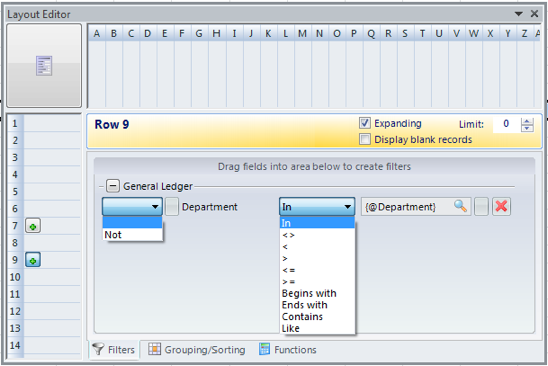 Figure: Filter operators in Report Designer
In the first drop-down box, these two options are available:
| Option | Function |
|---|---|
| blank | Will include all data inside the specified filter. |
| Not | Will include all data outside the specified filter. |
If there are multiple filters in the same group, these options will also be available in the first drop-down box:
| Option | Function |
|---|---|
| And | Will filter the first condition AND the second condition. |
| Or | Will filter the first condition OR the second condition. |
| And Not | Will filter the first condition AND NOT the second condition. |
| Or Not | Will filter the first condition OR NOT the second condition. |
In the second drop-down box, these filter operators are available:
| Option | Function |
|---|---|
| In | dimension is In… (the selected parameters) |
| <> | dimension is Not equal to… (the selected parameters) |
| < | dimension is Less than… (for numerical values) |
| > | dimension is Greater than… (for numerical values) |
| <= | dimension is Less than or equal to… (for numerical values) |
| >= | dimension is Greater than or equal to… (for numerical values) |
| Begins with | dimension Begins with… (for any phrase contained in the dimension) |
| Ends with | dimension Ends with… (for any phrase contained in the dimension) |
| Contains | dimension Contains… (any part of the phrase contained in the dimension) |
| Like | OSR Report Designer will retrieve any data using “LIKE …” in SQL.* |
*The Like operator is for advanced users and requires knowledge of SQL.